Django Portfolio Project

About
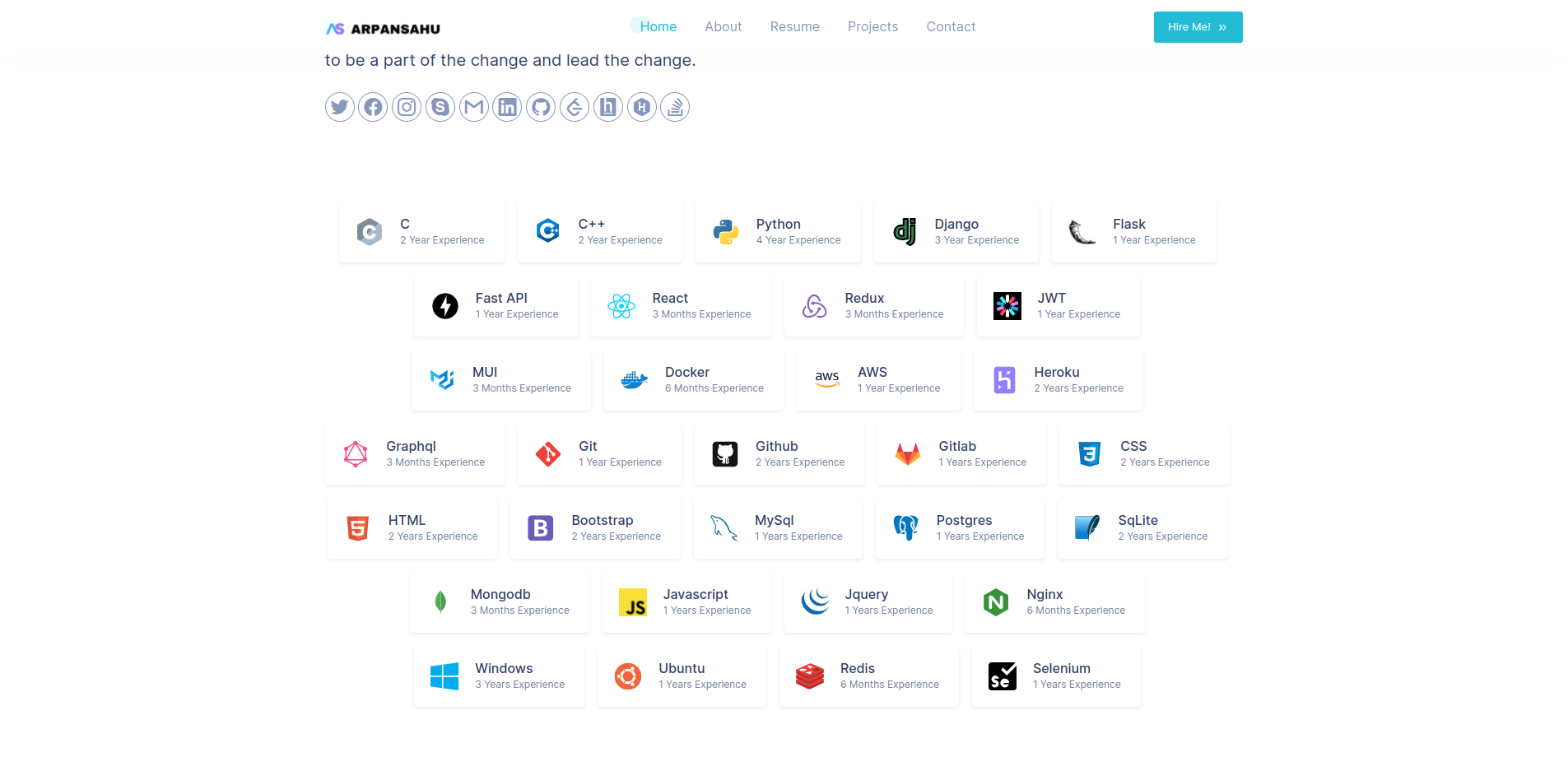
Skills

Education and Experience
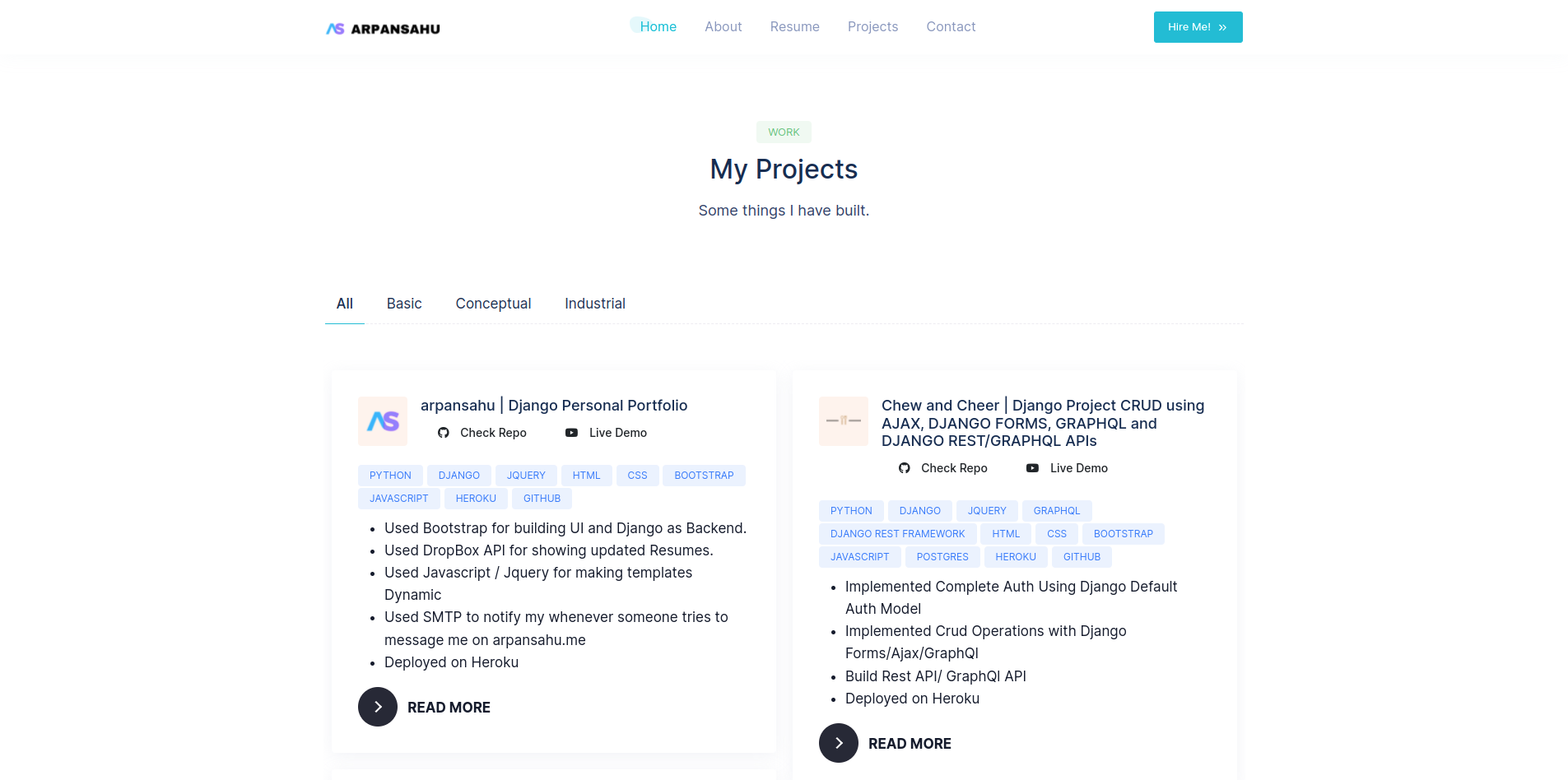
Projects
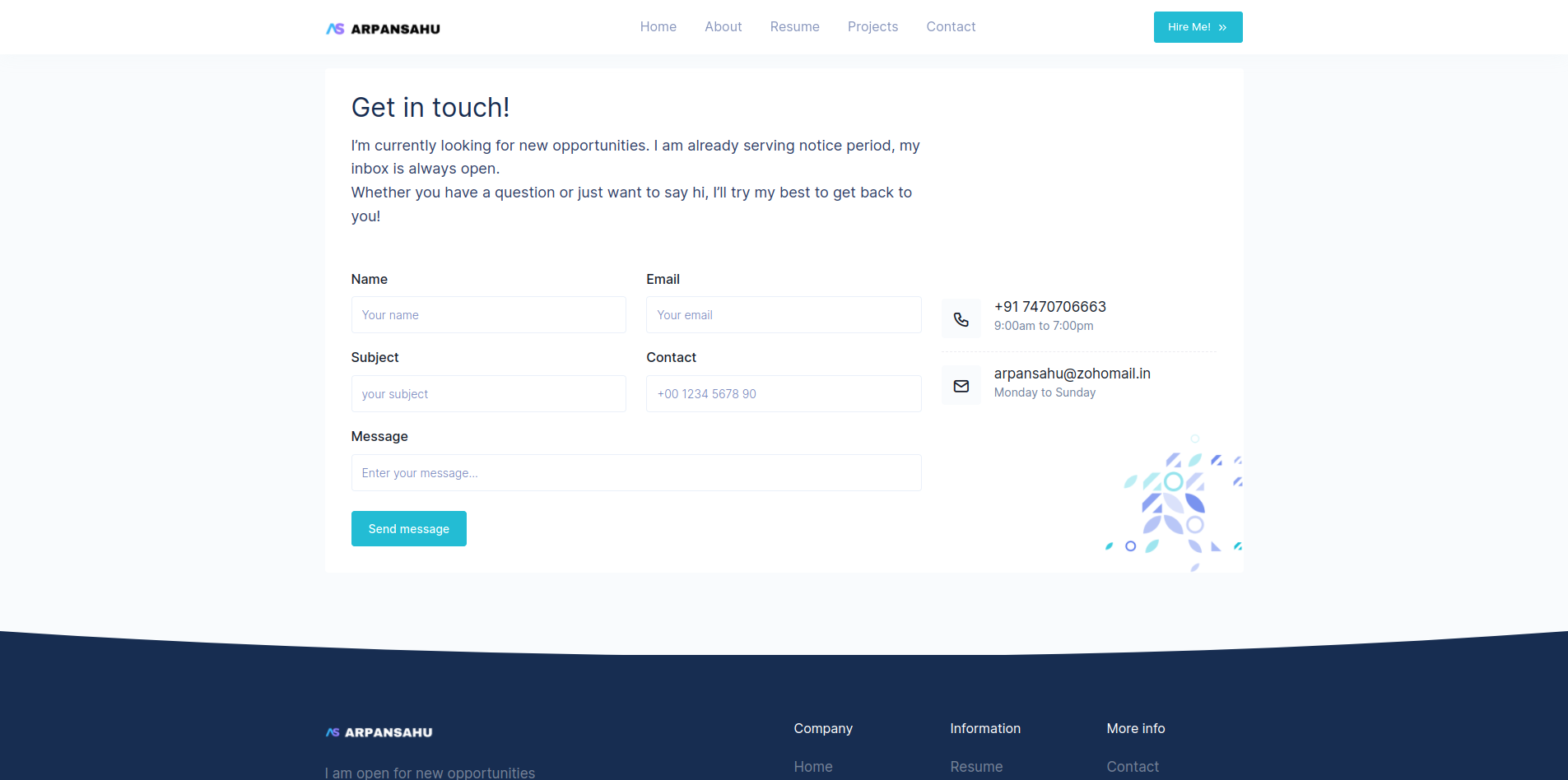
Contact
Technologies Used
arpansahu.space | Django Portfolio Project
This is a simple django portfolio project
Project Features
- Account Functionality: Complete account management.
- PostgreSql Integration: Utilized as a database.
- AWS S3/MinIO Integration: For file storage.
- Redis Integration: Utilized for caching and message pub/sub.
- MailJet Integration: Used for email services.
- Dockerized Project: Fully containerized for easy deployment.
- Kubernetes-native Kubernetes support also available.
- CI/CD Pipeline: Continuous integration and deployment included using Jenkins.
- Sentry Integrated: Logging and Debugging Made Easy.
WhatsApp Clone Functionalities
- Portfolio:
- Show Casing Important Information
- Technologies | Education | Career
- Display all Projects:
- Showcase all projects together in short information
- In detail description of each project
- Resume Download:
- Resume download feature.
- Contact Page:
- Contact Via Email Page.
-Deployed on AWS / Now in My Own Home Ubuntu Server LTS 22.0 / Hostinger VPS Server
- Ubuntu 22.0 LTS - Base operating system
- Nginx - Web proxy server with HTTPS
- Wildcard SSL - Let's Encrypt certificate via acme.sh
- Acme-dns - Automated wildcard certificate renewal
- Docker/Kubernetes - Container orchestration with k3s, managed via Portainer at https://portainer.arpansahu.space
- Jenkins - CI/CD pipeline at https://jenkins.arpansahu.space
- PostgreSQL - Schema-based database with TLS stream proxy at https://postgres.arpansahu.space:9552
- PgAdmin - PostgreSQL management UI at https://pgadmin.arpansahu.space
- Redis - Caching and message broker with TLS stream proxy at https://redis.arpansahu.space:9551
- Redis Commander - Redis management UI at https://redis.arpansahu.space
- MinIO - Self-hosted S3 storage server at https://minio.arpansahu.space (Console) and https://minioapi.arpansahu.space (API)
- Harbor - Self-hosted Docker registry at https://harbor.arpansahu.space
- RabbitMQ - Message queue broker at https://rabbitmq.arpansahu.space
- Kafka/AKHQ - Event streaming platform with UI at https://kafka.arpansahu.space
- SSH Web Terminal - Browser-based SSH access at https://ssh.arpansahu.space
- Sentry - Error tracking and monitoring at https://arpansahu.sentry.io
- Monitoring Stack - Prometheus, Grafana, and node-exporter for system monitoring
What is Python ?
Python is a high-level, general-purpose programming language. Its design philosophy emphasizes code readability with the
use of significant indentation. Python is dynamically typed and garbage-collected. It supports multiple programming
paradigms, including structured, object-oriented and functional programming.
What is Django ?
Django is a Python-based free and open-source web framework that follows the model-template-view architectural pattern.
What is Redis ?
Redis is an in-memory data structure project implementing a distributed, in-memory key-value database with optional durability.
The most common Redis use cases are session cache, full-page cache, queues, leader boards and counting, publish-subscribe, and much more. in this case, we will use Redis as a message broker.
Tech Stack















Demo
Live Demo: https://arpansahu.space
Admin Panel:
https://arpansahu.space/admin
- Username:
admin@arpansahu.space
- Password:
REDACTED_PASSWORD
License
Installation
Installing Pre requisites
pip install -r requirements.txt
Create .env File and don't forget to add .env to gitignore
add variables mentioned in .env.example
Making Migrations and Migrating them.
  python manage.py makemigrations
  python manage.py migrate
Run update_data Command
python manage.py update_data
Creating Super User
python manage.py createsuperuser
Installing Redis On Local (For ubuntu) for other Os Please refer to their website https://redis.io/
  curl -fsSL https://packages.redis.io/gpg | sudo gpg --dearmor -o /usr/share/keyrings/redis-archive-keyring.gpg
  echo "deb [signed-by=/usr/share/keyrings/redis-archive-keyring.gpg] https://packages.redis.io/deb $(lsb_release -cs) main" | sudo tee /etc/apt/sources.list.d/redis.list
  sudo apt-get update
  sudo apt-get install redis
  sudo systemctl restart redis.service
to check if its running or not
sudo systemctl status redis
Run Server
  python manage.py runserver

  or

  gunicorn --bind 0.0.0.0:8000 arpansahu_dot_me.wsgi
Change settings.py static files and media files settings | Now I have added support for BlackBlaze Static Storage also which also based on AWS S3 protocols
if not DEBUG:
    BUCKET_TYPE = BUCKET_TYPE

    if BUCKET_TYPE == 'AWS':
        AWS_S3_CUSTOM_DOMAIN = f'{AWS_STORAGE_BUCKET_NAME}.s3.amazonaws.com'
        AWS_DEFAULT_ACL = 'public-read'
        AWS_S3_OBJECT_PARAMETERS = {
            'CacheControl': 'max-age=86400'
        }
        AWS_LOCATION = 'static'
        AWS_QUERYSTRING_AUTH = False
        AWS_HEADERS = {
            'Access-Control-Allow-Origin': '*',
        }
        # s3 static settings
        AWS_STATIC_LOCATION = f'portfolio/{PROJECT_NAME}/static'
        STATIC_URL = f'https://{AWS_S3_CUSTOM_DOMAIN}/{AWS_STATIC_LOCATION}/'
        STATICFILES_STORAGE = f'{PROJECT_NAME}.storage_backends.StaticStorage'
        # s3 public media settings
        AWS_PUBLIC_MEDIA_LOCATION = f'portfolio/{PROJECT_NAME}/media'
        MEDIA_URL = f'https://{AWS_S3_CUSTOM_DOMAIN}/{AWS_PUBLIC_MEDIA_LOCATION}/'
        DEFAULT_FILE_STORAGE = f'{PROJECT_NAME}.storage_backends.PublicMediaStorage'
        # s3 private media settings
        PRIVATE_MEDIA_LOCATION = f'portfolio/{PROJECT_NAME}/private'
        PRIVATE_FILE_STORAGE = f'{PROJECT_NAME}.storage_backends.PrivateMediaStorage'

    elif BUCKET_TYPE == 'BLACKBLAZE':
        AWS_S3_REGION_NAME = 'us-east-005'

        AWS_S3_ENDPOINT = f's3.{AWS_S3_REGION_NAME}.backblazeb2.com'
        AWS_S3_ENDPOINT_URL = f'https://{AWS_S3_ENDPOINT}'

        AWS_DEFAULT_ACL = 'public-read'
        AWS_S3_OBJECT_PARAMETERS = {
            'CacheControl': 'max-age=86400',
        }

        AWS_LOCATION = 'static'
        AWS_QUERYSTRING_AUTH = False
        AWS_HEADERS = {
            'Access-Control-Allow-Origin': '*',
        }
        # s3 static settings
        AWS_STATIC_LOCATION = f'portfolio/{PROJECT_NAME}/static'
        STATIC_URL = f'https://{AWS_STORAGE_BUCKET_NAME}.{AWS_STATIC_LOCATION}/'
        STATICFILES_STORAGE = f'{PROJECT_NAME}.storage_backends.StaticStorage'
        # s3 public media settings
        AWS_PUBLIC_MEDIA_LOCATION = f'portfolio/{PROJECT_NAME}/media'
        MEDIA_URL = f'https://{AWS_STORAGE_BUCKET_NAME}.{AWS_PUBLIC_MEDIA_LOCATION}/'
        DEFAULT_FILE_STORAGE = f'{PROJECT_NAME}.storage_backends.PublicMediaStorage'
        # s3 private media settings
        PRIVATE_MEDIA_LOCATION = f'portfolio/{PROJECT_NAME}/private'
        PRIVATE_FILE_STORAGE = f'{PROJECT_NAME}.storage_backends.PrivateMediaStorage'

    elif BUCKET_TYPE == 'MINIO':
        AWS_S3_REGION_NAME = 'us-east-1'  # MinIO doesn't require this, but boto3 does
        AWS_S3_ENDPOINT_URL = 'https://minio.arpansahu.spacee'
        AWS_DEFAULT_ACL = 'public-read'
        AWS_S3_OBJECT_PARAMETERS = {
            'CacheControl': 'max-age=86400',
        }
        AWS_LOCATION = 'static'
        AWS_QUERYSTRING_AUTH = False
        AWS_HEADERS = {
            'Access-Control-Allow-Origin': '*',
        }

        # s3 static settings
        AWS_STATIC_LOCATION = f'portfolio/{PROJECT_NAME}/static'
        STATIC_URL = f'https://{AWS_STORAGE_BUCKET_NAME}/{AWS_STATIC_LOCATION}/'
        STATICFILES_STORAGE = f'{PROJECT_NAME}.storage_backends.StaticStorage'

        # s3 public media settings
        AWS_PUBLIC_MEDIA_LOCATION = f'portfolio/{PROJECT_NAME}/media'
        MEDIA_URL = f'https://{AWS_STORAGE_BUCKET_NAME}/{AWS_PUBLIC_MEDIA_LOCATION}/'
        DEFAULT_FILE_STORAGE = f'{PROJECT_NAME}.storage_backends.PublicMediaStorage'

        # s3 private media settings
        PRIVATE_MEDIA_LOCATION = 'portfolio/borcelle_crm/private'
        PRIVATE_FILE_STORAGE = 'borcelle_crm.storage_backends.PrivateMediaStorage'
else:
    # Static files (CSS, JavaScript, Images)
    # https://docs.djangoproject.com/en/3.2/howto/static-files/

    STATIC_URL = '/static/'

    STATIC_ROOT = os.path.join(BASE_DIR, 'staticfiles')
    MEDIA_URL = '/media/'

MEDIA_ROOT = os.path.join(BASE_DIR, 'media')
STATICFILES_DIRS = [os.path.join(BASE_DIR, "static"), ]
run below command
python manage.py collectstatic
and you are good to go
Use these CACHE settings
CACHES = {
    'default': {
        'BACKEND': 'django_redis.cache.RedisCache',
        'LOCATION': REDIS_CLOUD_URL,
        'OPTIONS': {
            'CLIENT_CLASS': 'django_redis.client.DefaultClient',
        },
        'KEY_PREFIX': PROJECT_NAME
    }
}
Use these Sentry Settings for Logging
def get_git_commit_hash():
    try:
        return subprocess.check_output(['git', 'rev-parse', 'HEAD']).decode('utf-8').strip()
    except Exception:
        return None

sentry_sdk.init(
    dsn=SENTRY_DSH_URL,
    integrations=[
            DjangoIntegration(
                transaction_style='url',
                middleware_spans=True,
                # signals_spans=True,
                # signals_denylist=[
                #     django.db.models.signals.pre_init,
                #     django.db.models.signals.post_init,
                # ],
                # cache_spans=False,
            ),
        ],
    traces_sample_rate=1.0,  # Adjust this according to your needs
    send_default_pii=True,  # To capture personal identifiable information (optional)
    release=get_git_commit_hash(),  # Set the release to the current git commit hash
    environment=SENTRY_ENVIRONMENT,  # Or "staging", "development", etc.
    # profiles_sample_rate=1.0,
)

LOGGING = {
    'version': 1,
    'disable_existing_loggers': False,
    'handlers': {
        'console': {
            'level': 'DEBUG',
            'class': 'logging.StreamHandler',
        },
        'sentry': {
            'level': 'ERROR',  # Change this to WARNING or INFO if needed
            'class': 'sentry_sdk.integrations.logging.EventHandler',
            'formatter': 'verbose',
        },
    },
    'loggers': {
        'django': {
            'handlers': ['console', 'sentry'],
            'level': 'INFO',
            'propagate': False,
        },
        'django.request': {
            'handlers': ['console', 'sentry'],
            'level': 'ERROR',  # Only log errors to Sentry
            'propagate': False,
        },
        'django.db.backends': {
            'handlers': ['console', 'sentry'],
            'level': 'ERROR',  # Only log errors to Sentry
            'propagate': False,
        },
        'django.security': {
            'handlers': ['console', 'sentry'],
            'level': 'WARNING',  # You can set this to INFO or DEBUG as needed
            'propagate': False,
        },
        # You can add more loggers here if needed
    },
    'formatters': {
        'verbose': {
            'format': '%(levelname)s %(asctime)s %(module)s %(process)d %(thread)d %(message)s'
        },
    },
}
Also for setting up relays include Loader Script in base.html
<script src="https://js.sentry-cdn.com/{random_unique_code_get_from_sentry_ui}.min.js" crossorigin="anonymous"></script>
Custom Django Management Commands
-
Test DB
Django management command designed to test the basic functionality of the database. It performs a series of CRUD (Create, Read, Update, Delete) operations to ensure the database is working correctly.
python manage.py test_db
-
Test Cache
Django management command designed to test the basic functionality of the caching system. It performs a set and get operation to ensure the cache is working correctly and validates the expiration of cache entries.
python manage.py test_cache
-
Sync Media to S3
In case if you are using production database and debug mode is on. all the media send in the chats will be stored to local media folder which might not get synced to s3 bucket and when you run in production those media will be missing.
python manage.py sync_media_to_s3
Readme Manager
Each repository contains an
update_readme.sh
script located in the
readme_manager
directory. This script is responsible for updating the README file in the repository by pulling in content from various sources.
What it Does
The
update_readme.sh
script performs the following actions:
-
Clone Required Files
: Clones the
requirements.txt,readme_updater.py, andbaseREADME.mdfiles from thecommon_readmerepository. - Set Up Python Environment : Creates and activates a Python virtual environment.
-
Install Dependencies
: Installs the necessary dependencies listed in
requirements.txt. -
Run Update Script
: Executes the
readme_updater.pyscript to update the README file usingbaseREADME.mdand other specified sources. - Clean Up : Deactivates the Python virtual environment and removes it.
How to Use
To run the
update_readme.sh
script, navigate to the
readme_manager
directory and execute the script:
cd readme_manager && ./update_readme.sh
This will update the
README.md
file in the root of the repository with the latest content from the specified sources.
Updating Content
If you need to make changes that are specific to the project or project-specific files, you might need to update the content of the partial README files. Here are the files that are included:
- Project-Specific Files :
-
env.example -
docker-compose.yml -
Dockerfile -
Jenkinsfile -
Project-Specific Partial Files :
-
INTRODUCTION:../readme_manager/partials/introduction.md -
DOC_AND_STACK:../readme_manager/partials/documentation_and_stack.md -
TECHNOLOGY QNA:../readme_manager/partials/technology_qna.md -
DEMO:../readme_manager/partials/demo.md -
INSTALLATION:../readme_manager/partials/installation.md -
DJANGO_COMMANDS:../readme_manager/partials/django_commands.md -
NGINX_SERVER:../readme_manager/partials/nginx_server.md
These files are specific to the project and should be updated within the project repository.
- Common Files :
-
All other files are common across projects and should be updated in the
common_readmerepository.
There are a few files which are common for all projects. For convenience, these are inside the
common_readme
repository so that if changes are made, they will be updated in all the projects' README files.
# Define a dictionary with the placeholders and their corresponding GitHub raw URLs or local paths

include_files = {
    # common files

    "README of Docker Installation": "https://raw.githubusercontent.com/arpansahu/common_readme/main/AWS%20Deployment/01-docker/docker_installation.md",
    "DOCKER_END": "https://raw.githubusercontent.com/arpansahu/common_readme/main/AWS%20Deployment/01-docker/docker_end.md",
    "README of Nginx Setup": "https://raw.githubusercontent.com/arpansahu/common_readme/main/AWS%20Deployment/02-nginx/README.md",
    "README of Jenkins Setup": "https://raw.githubusercontent.com/arpansahu/common_readme/main/AWS%20Deployment/12-jenkins/Jenkins.md",
    "README of PostgreSql Server With Nginx Setup": "https://raw.githubusercontent.com/arpansahu/common_readme/main/AWS%20Deployment/03-postgres/README.md",
    "README of PGAdmin4 Server With Nginx Setup": "https://raw.githubusercontent.com/arpansahu/common_readme/main/AWS%20Deployment/06-pgadmin/README.md",
    "README of Portainer Server With Nginx Setup": "https://raw.githubusercontent.com/arpansahu/common_readme/main/AWS%20Deployment/05-portainer/README.md",
    "README of Redis Server Setup": "https://raw.githubusercontent.com/arpansahu/common_readme/main/AWS%20Deployment/04-redis/README.md",
    "README of Redis Commander Setup": "https://raw.githubusercontent.com/arpansahu/common_readme/main/AWS%20Deployment/07-redis_commander/README.md",
    "README of Minio Server Setup": "https://raw.githubusercontent.com/arpansahu/common_readme/main/AWS%20Deployment/08-minio/README.md",
    "README of RabbitMQ Server Setup": "https://raw.githubusercontent.com/arpansahu/common_readme/main/AWS%20Deployment/09-rabbitmq/README.md",
    "README of Kafka Server Setup": "https://raw.githubusercontent.com/arpansahu/common_readme/main/AWS%20Deployment/10-kafka/Kafka.md",
    "README of AKHQ UI Setup": "https://raw.githubusercontent.com/arpansahu/common_readme/main/AWS%20Deployment/10-kafka/AKHQ.md",
    "README of Intro": "https://raw.githubusercontent.com/arpansahu/common_readme/main/AWS%20Deployment/Intro.md",
    "INSTALLATION ORDER": "https://raw.githubusercontent.com/arpansahu/common_readme/main/AWS%20Deployment/INSTALLATION_ORDER.md",
    "HOME SERVER SETUP": "https://raw.githubusercontent.com/arpansahu/common_readme/main/AWS%20Deployment/home_server/README.md",
    "SSH KEY SETUP": "https://raw.githubusercontent.com/arpansahu/common_readme/main/AWS%20Deployment/home_server/steps/00-ssh-key-setup.md",
    "HARDWARE PREPARATION": "https://raw.githubusercontent.com/arpansahu/common_readme/main/AWS%20Deployment/home_server/steps/01-hardware-preparation.md",
    "UBUNTU INSTALLATION": "https://raw.githubusercontent.com/arpansahu/common_readme/main/AWS%20Deployment/home_server/steps/02-ubuntu-installation.md",
    "INITIAL CONFIGURATION": "https://raw.githubusercontent.com/arpansahu/common_readme/main/AWS%20Deployment/home_server/steps/03-initial-configuration.md",
    "NETWORK CONFIGURATION": "https://raw.githubusercontent.com/arpansahu/common_readme/main/AWS%20Deployment/home_server/steps/04-network-configuration.md",
    "UPS CONFIGURATION": "https://raw.githubusercontent.com/arpansahu/common_readme/main/AWS%20Deployment/home_server/steps/05-ups-configuration.md",
    "BACKUP INTERNET": "https://raw.githubusercontent.com/arpansahu/common_readme/main/AWS%20Deployment/home_server/steps/06-backup-internet.md",
    "MONITORING SETUP": "https://raw.githubusercontent.com/arpansahu/common_readme/main/AWS%20Deployment/home_server/steps/07-monitoring-setup.md",
    "AUTOMATED BACKUPS": "https://raw.githubusercontent.com/arpansahu/common_readme/main/AWS%20Deployment/home_server/steps/08-automated-backups.md",
    "REMOTE ACCESS SETUP": "https://raw.githubusercontent.com/arpansahu/common_readme/main/AWS%20Deployment/home_server/steps/09-remote-access.md",
    "CORE SERVICES INSTALLATION": "https://raw.githubusercontent.com/arpansahu/common_readme/main/AWS%20Deployment/home_server/steps/10-core-services.md",
    "SSH WEB TERMINAL SETUP": "https://raw.githubusercontent.com/arpansahu/common_readme/main/AWS%20Deployment/ssh-web-terminal/README.md",
    "ROUTER ADMIN AIRTEL SETUP": "https://raw.githubusercontent.com/arpansahu/common_readme/main/AWS%20Deployment/airtel/README.md",
    "README of Readme Manager": "https://raw.githubusercontent.com/arpansahu/common_readme/main/Readme%20manager/readme_manager.md",
    "AWS DEPLOYMENT INTRODUCTION": "https://raw.githubusercontent.com/arpansahu/common_readme/main/Introduction/aws_desployment_introduction.md",
    "STATIC_FILES": "https://raw.githubusercontent.com/arpansahu/common_readme/main/Introduction/static_files_settings.md",
    "SENTRY": "https://raw.githubusercontent.com/arpansahu/common_readme/main/Introduction/sentry.md",
    "CHANNELS": "https://raw.githubusercontent.com/arpansahu/common_readme/main/Introduction/channels.md",
    "CACHE": "https://raw.githubusercontent.com/arpansahu/common_readme/main/Introduction/cache.md",
    "README of Harbor" : "https://raw.githubusercontent.com/arpansahu/common_readme/main/AWS%20Deployment/11-harbor/harbor.md",
    "INCLUDE FILES": "https://raw.githubusercontent.com/arpansahu/common_readme/main/include_files.py",
    "MONITORING": "https://raw.githubusercontent.com/arpansahu/arpansahu-one-scripts/main/README.md",

    # kubernetes k3s (current production setup: k3s + Portainer, Nginx-managed HTTPS)
    "KUBE DEPLOYMENT": "https://raw.githubusercontent.com/arpansahu/common_readme/main/AWS%20Deployment/kubernetes_k3s/README.md",

    # project files
    "env.example": "../env.example",
    "docker-compose.yml": "../docker-compose.yml",
    "Dockerfile": "../Dockerfile",
    "Jenkinsfile-deploy": "../Jenkinsfile-deploy",
    "Jenkinsfile-build": "../Jenkinsfile-build",
    "DEPLOYMENT YAML": "../deployment.yaml",
    "SERVICE YAML": "../service.yaml",


    # project partials files
    "INTRODUCTION": "../readme_manager/partials/introduction.md",
    "INTRODUCTION MAIN": "../readme_manager/partials/introduction_main.md",
    "DOC_AND_STACK": "../readme_manager/partials/documentation_and_stack.md",
    "TECHNOLOGY QNA": "../readme_manager/partials/technology_qna.md",
    "DEMO": "../readme_manager/partials/demo.md",
    "INSTALLATION": "../readme_manager/partials/installation.md",
    "DJANGO_COMMANDS": "../readme_manager/partials/django_commands.md",
    "NGINX_SERVER": "../readme_manager/partials/nginx_server.md",
    "SERVICES": "../readme_manager/partials/services.md",
    "JENKINS PROJECT NAME": "../readme_manager/partials/jenkins_project_name.md",
    "JENKINS BUILD PROJECT NAME": "../readme_manager/partials/jenkins_build_project_name.md",
    "STATIC PROJECT NAME": "../readme_manager/partials/static_project_name.md",
    "PROJECT_NAME_DASH" : "../readme_manager/partials/project_name_with_dash.md",
    "PROJECT_DOCKER_PORT": "../readme_manager/partials/project_docker_port.md",
    "PROJECT_NODE_PORT": "../readme_manager/partials/project_node_port.md",
    "DOMAIN_NAME": "../readme_manager/partials/project_domain_name.md"
}
Also, remember if you want to include new files, you need to change the
baseREADME
file and the
include_files
array in the
common_readme
repository itself.
Deployment on AWS EC2/ Home Server Ubuntu 22.0 LTS/ Hostinger VPS Server
Deployment Architecture Evolution
This project and all related services have evolved through multiple deployment strategies, each with unique advantages. This documentation covers all three approaches to provide flexibility based on your needs.
Deployment Timeline
Phase 1: Heroku (Legacy)
- Initial hosting on Heroku
- Simple deployment but expensive at scale
- Limited control over infrastructure
Phase 2: EC2 + Home Server Hybrid (2022-2023)
- EC2 for portfolio (arpansahu.spacee) with Nginx
- Home Server for all other projects
- Nginx on EC2 forwarded traffic to Home Server
- Cost-effective but faced reliability challenges
Phase 3: Single EC2 Server (Aug 2023)
- Consolidated all projects to single EC2 instance
- Started with t2.medium (~$40/month)
- Optimized to t2.small (~$15/month)
- Better reliability, higher costs
Phase 4: Hostinger VPS (Jan 2024)
- Migrated to Hostinger VPS for cost optimization
- Better pricing than EC2
- Good balance of cost and reliability
Phase 5: Home Server (Current - 2026)
- Back to Home Server with improved setup
- Leveraging lessons learned from previous attempts
- Modern infrastructure with Kubernetes, proper monitoring
- Significant cost savings with better reliability measures
Three Deployment Options
This documentation supports all three deployment strategies:
1. AWS EC2
Advantages:
- High reliability (99.99% uptime SLA)
- Global infrastructure and CDN integration
- Scalable on demand
- Professional-grade monitoring and support
- No dependency on home internet/power
Disadvantages:
- Higher cost (~$15-40/month depending on instance)
- Ongoing monthly expenses
- Limited by instance size without additional cost
Best For:
- Production applications requiring maximum uptime
- Applications needing global reach
- When budget allows for convenience
- Business-critical services
2. Hostinger VPS
Advantages:
- Cost-effective (~$8-12/month)
- Good performance for price
- Managed infrastructure options
- Reliable uptime
- Easy scaling
Disadvantages:
- Still recurring monthly cost
- Less control than EC2
- Limited to Hostinger's infrastructure
Best For:
- Budget-conscious deployments
- Personal projects requiring good uptime
- When you want managed services at lower cost
- Small to medium applications
3. Home Server
Advantages:
-
Zero recurring costs
(only electricity)
- Full hardware control and unlimited resources
- Privacy and data sovereignty
- Learning opportunity for infrastructure management
- Can repurpose old laptops/desktops
- Ideal for development and testing
Disadvantages (and Mitigations):
-
ISP downtime
→ Use UPS + mobile hotspot backup
-
Power cuts
→ UPS with sufficient backup time
-
Weather issues
→ Redundant internet connection
-
Hardware failure
→ Regular backups, spare parts
-
Remote troubleshooting
→ Proper monitoring, remote access tools
-
Dynamic IP
→ Dynamic DNS services (afraid.org, No-IP)
Best For:
- Personal projects and portfolios
- Development and testing environments
- Learning DevOps and system administration
- When you have reliable power and internet
- Cost-sensitive deployments
Current Architecture (Home Server - Hybrid Approach)
Current Setup (February 2026):
Internet
   │
   ├─ arpansahu.space (Home Server with Static IP)
   │   │
   │   └─ Nginx 1.18.0 (systemd) - TLS Termination & Reverse Proxy
   │        │
   │        ├─ System Services (systemd) - Core Infrastructure
   │        │   ├─ PostgreSQL 14.20 - Primary database
   │        │   ├─ Redis 6.0.16 - Cache and sessions
   │        │   ├─ RabbitMQ - Message broker for Celery
   │        │   ├─ Kafka 3.9.0 - Event streaming (KRaft mode)
   │        │   ├─ MinIO - S3-compatible object storage
   │        │   ├─ Jenkins 2.541.1 - CI/CD automation
   │        │   ├─ ElasticSearch - Search and logging
   │        │   └─ K3s - Kubernetes for app orchestration
   │        │
   │        ├─ Docker Containers (Management UIs only)
   │        │   ├─ Portainer - Docker & K3s management
   │        │   ├─ PgAdmin - PostgreSQL admin interface
   │        │   ├─ Redis Commander - Redis admin interface
   │        │   ├─ Harbor - Private Docker registry
   │        │   ├─ AKHQ - Kafka management UI
   │        │   ├─ Kibana - ElasticSearch UI
   │        │   └─ PMM - PostgreSQL monitoring
   │        │
   │        └─ K3s Deployments (Django Applications)
   │             ├─ arpansahu.space
   │             ├─ borcelle.arpansahu.space
   │             ├─ chew.arpansahu.space
   │             └─ django-starter.arpansahu.space
Why Hybrid Architecture?
This evolved architecture uses the best deployment method for each service type:
- System Services for Core Infrastructure
- Better performance (no containerization overhead)
- Production-grade reliability via systemd
- Direct system access and monitoring (journalctl)
- Native backup/restore tools
-
Lower resource usage
-
Docker for Management UIs
- Easy updates (docker pull)
- Isolated dependencies
- Lower priority - can restart without affecting core services
-
Quick rollback if updates fail
-
K3s for Applications
- Container orchestration benefits
- Easy scaling and rolling updates
- Service discovery
- Resource limits and quotas
- Health checks and auto-restart
Performance Impact:
- Core services run 10-15% faster vs Docker
- Better memory utilization (no container overhead for heavy services)
- Easier to tune PostgreSQL, Redis performance parameters
- Direct disk I/O for databases and object storage
Home Server Improvements (2026)
Lessons learned from 2022-2023 experience have been addressed:
Reliability Enhancements:
1. UPS with 2-4 hour backup capacity
2. Redundant internet (primary broadband + 4G backup)
3. Hardware RAID for data redundancy
4. Automated monitoring and alerting
5. Remote management tools (SSH, VPN)
6. Automated backup to cloud storage
Monitoring Stack:
- Uptime monitoring (UptimeRobot, Healthchecks.io)
- System monitoring (Prometheus + Grafana)
- Log aggregation (Loki)
- Alert notifications (Email, Telegram)
Infrastructure:
- Kubernetes (k3s) for orchestration
- Docker for containerization
- PM2 for process management
- Nginx for reverse proxy and HTTPS
- Automated deployments via Jenkins
Comparison Matrix
| Feature | EC2 | Hostinger VPS | Home Server |
|---|---|---|---|
| Monthly Cost | $15-40 | $8-12 | ~$5 (electricity) |
| Uptime SLA | 99.99% | 99.9% | 95-98% (with improvements) |
| Setup Time | Medium | Easy | Complex |
| Scalability | Excellent | Good | Limited by hardware |
| Control | High | Medium | Full |
| Learning Value | Medium | Low | Very High |
| Remote Access | Built-in | Built-in | Requires setup |
| Backup | Easy | Easy | Manual setup needed |
| Privacy | Low | Medium | Complete |
Recommended Setup by Use Case
For Production/Business:
- Use EC2 or Hostinger VPS
- Follow all documentation except home server specific sections
- Implement proper backup and disaster recovery
For Personal Projects:
- Home Server is ideal
- Follow complete documentation including home server setup
- Implement monitoring and backup strategies
For Learning:
- Home Server provides maximum learning opportunity
- Experiment with all services and configurations
- Break things and fix them safely
Infrastructure Components
All deployment options use the same software stack:
Core Services:
- Docker Engine with docker-compose-plugin
- Nginx with wildcard SSL (acme.sh)
- Kubernetes (k3s) without Traefik
- Portainer for container management
Application Services:
- PostgreSQL 16 with SCRAM-SHA-256
- Redis for caching
- RabbitMQ for message queuing
- Kafka with KRaft mode for event streaming
- MinIO for object storage
- PgAdmin for database administration
- AKHQ for Kafka management
DevOps Tools:
- Jenkins for CI/CD
- Git for version control
- PM2 for process management
Monitoring (Home Server):
- System metrics and health checks
- Automated alerting
- Log aggregation
Documentation Structure
This repository provides step-by-step guides for:
- SSH Key Setup (Do This First!) ← IMPORTANT
- Installation Order & Dependencies ← Start Here
- Docker Installation
- Nginx Setup (HTTP + HTTPS)
- Kubernetes with Portainer
- PostgreSQL Setup
- Redis Setup
- Redis Commander
- RabbitMQ
- Kafka with KRaft
- AKHQ (Kafka UI)
- Portainer
- PgAdmin
- MinIO Object Storage
- Jenkins CI/CD
- Harbor Private Registry
- Home Server Setup ← Complete laptop-to-server guide
- SSH Web Terminal ← Browser-based SSH access
- Airtel Router Admin ← Secure router management
Getting Started
For EC2/VPS Deployment:
1. Provision Ubuntu 22.04 server
2. Follow
Installation Order Guide
3. Install Docker and Docker Compose
4. Set up Nginx with HTTPS
5. Install required services in sequence
For Home Server Deployment:
1. Follow
Home Server Setup Guide
2. Install Ubuntu Server 22.04
3. Configure UPS and backup internet
4. Follow
Installation Order Guide
5. Set up monitoring and alerting
All projects are dockerized and run on predefined ports specified in Dockerfile and docker-compose.yml.
Architecture Diagrams
Historical Setup (2022-2023):
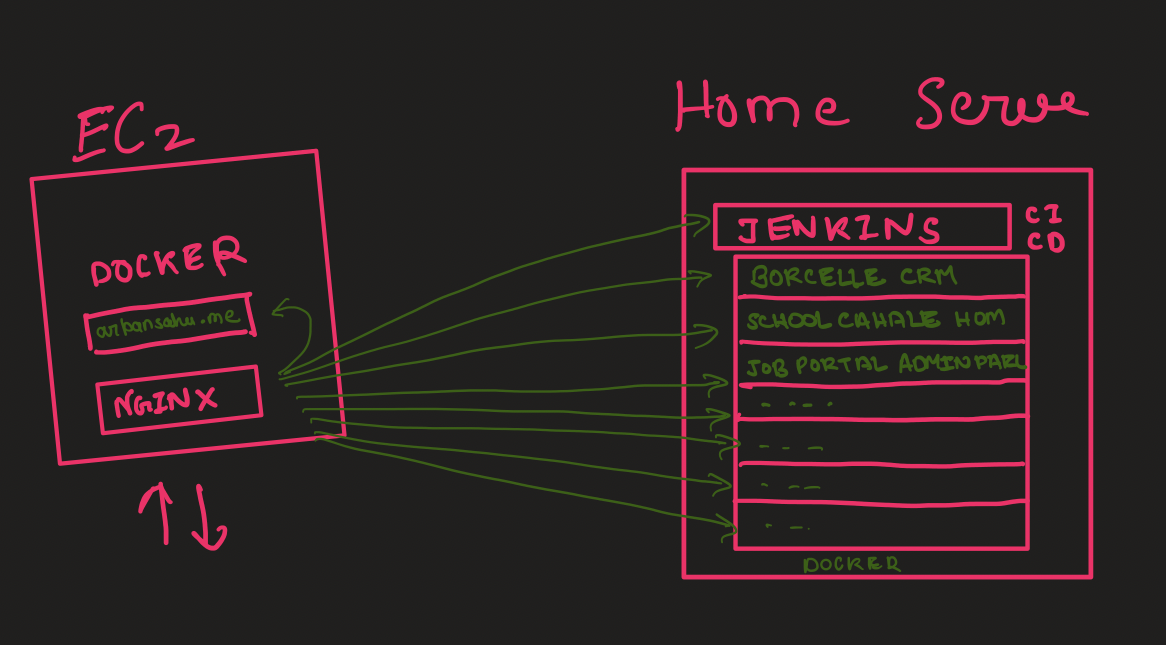
Single Server Setup (2023-2024):
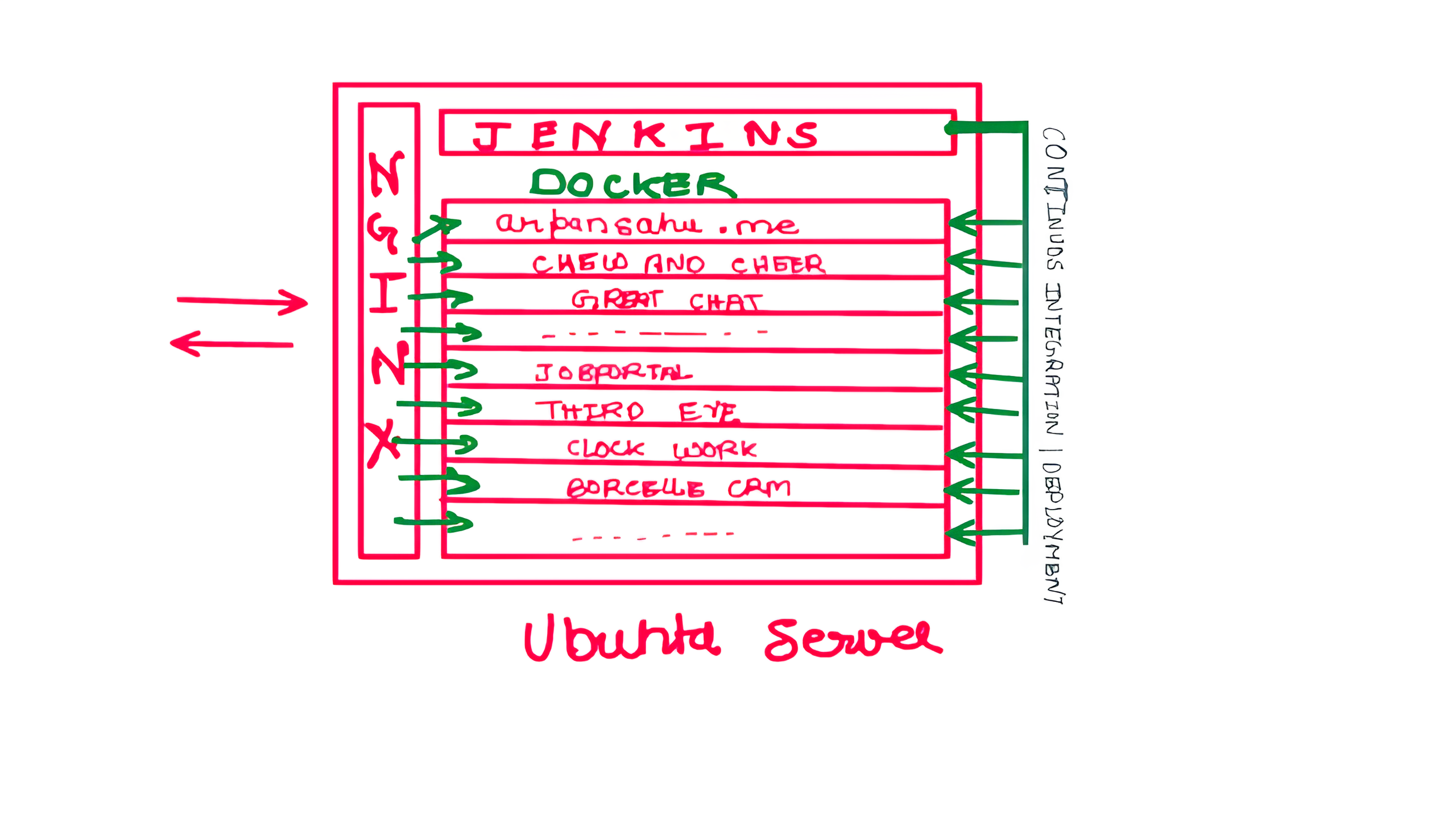
Current Home Server Setup (2026):
- Updated architecture with Kubernetes
- Improved reliability and monitoring
- All services behind Nginx with HTTPS
- Dynamic DNS for domain management
My Current Setup
As of January 2026, I'm running a home server setup with:
- Repurposed laptop as primary server
- Ubuntu 22.04 LTS Server
- 16GB RAM, 500GB SSD
- UPS backup power
- Dual internet connections (broadband + 4G)
- All services accessible via arpansahu.space
- Automated backups to cloud storage
Live projects: https://arpansahu.spacee/projects
Next Steps
Choose your deployment strategy and follow the relevant guides:
-
EC2/VPS
: Skip home server setup, start with Docker installation
-
Home Server
: Start with
Home Server Setup Guide
All guides are production-tested and follow the same format for consistency.
Note:
For complete setup guides:
-
Home Server
:
Home Server Setup Guide
-
Installation Order
:
Installation Order Guide
-
SSH Web Terminal
:
SSH Web Terminal Setup
-
Airtel Router Access
:
Airtel Router Admin Setup
Step 1: Dockerize
🐳 Docker Engine Installation (Updated for 2026)
Reference: https://docs.docker.com/engine/install/ubuntu/
Current Server Versions:
- Docker: 29.2.0 (February 2026)
- Docker Compose: v5.0.2 (plugin, not standalone)
1️⃣ Prerequisites & Repository Setup
1.1 Update apt and install required packages
sudo apt-get update
sudo apt-get install -y \
  ca-certificates \
  curl \
  gnupg \
  lsb-release
1.2 Add Docker's official GPG key (modern keyring approach)
sudo mkdir -p /etc/apt/keyrings

curl -fsSL https://download.docker.com/linux/ubuntu/gpg \
  | sudo gpg --dearmor -o /etc/apt/keyrings/docker.gpg

# Important: avoid GPG permission issues
sudo chmod a+r /etc/apt/keyrings/docker.gpg
🔹 Why this matters:
Earlier READMEs often skippedchmod a+r, which now causes GPG errors on newer Ubuntu versions.
1.3 Add Docker repository
echo "deb [arch=$(dpkg --print-architecture) signed-by=/etc/apt/keyrings/docker.gpg] \
https://download.docker.com/linux/ubuntu \
$(lsb_release -cs) stable" \
| sudo tee /etc/apt/sources.list.d/docker.list > /dev/null
2️⃣ Install Docker Engine
2.1 Update package index
sudo apt-get update
If you still see GPG errors:
sudo chmod a+r /etc/apt/keyrings/docker.gpg
sudo apt-get update
2.2 Install Docker Engine + Compose plugin
sudo apt-get install -y \
  docker-ce \
  docker-ce-cli \
  containerd.io \
  docker-compose-plugin
✅ Change vs old README:
-
docker-compose-pluginreplaces olddocker-composebinary -
Use
docker compose(space) instead ofdocker-compose(hyphen)
3️⃣ Start & Enable Docker
sudo systemctl start docker
sudo systemctl enable docker
4️⃣ Verify Installation
sudo docker run hello-world
✅ If you see "Hello from Docker!" , Docker is installed correctly.
Verify versions:
docker --version
# Expected: Docker version 29.x or later

docker compose version
# Expected: Docker Compose version v5.x or later
Important:
Notice
docker compose
(with space), NOT
docker-compose
(with hyphen). The old
docker-compose
standalone binary is deprecated and not installed.
5️⃣ (Recommended) Run Docker Without sudo
sudo usermod -aG docker $USER
newgrp docker
Verify:
docker ps
✅ Final Notes (Important Changes from Old Setup)
| Old Setup (Pre-2024) | Current Setup (2026) |
|---|---|
docker-compose
(hyphen)
|
docker compose
(space) -
plugin
|
| Docker v24.x | Docker v29.2.0 |
| Compose v2.23.x | Compose v5.0.2 |
| No key permission fix |
Explicit
chmod a+r docker.gpg
|
| Older install style | Keyring-based (required now) |
| Manual Compose install | Bundled via plugin |
Critical:
All docker-compose.yml files work with
docker compose
(space). Simply replace:
# Old way (deprecated):
docker-compose up -d

# New way (current):
docker compose up -d
📝 Common Docker Compose Commands
# Start services
docker compose up -d

# Stop services
docker compose down

# View logs
docker compose logs -f

# Restart services
docker compose restart

# Pull latest images
docker compose pull

# Check status
docker compose ps
🔧 Troubleshooting
"docker compose: command not found"
This means
docker-compose-plugin
is not installed. Install it:
sudo apt-get install docker-compose-plugin
Old docker-compose.yml files not working
All old
docker-compose
files are compatible with
docker compose
(plugin). No changes needed to YAML files, just change the command.
✅ Next Steps
After Docker installation, you can install:
-
Portainer
- Docker management UI
-
PostgreSQL
- Database server
-
Redis
- Cache server
-
MinIO
- Object storage
-
Harbor
- Container registry
See INSTALLATION_ORDER.md for recommended sequence.
Now in your Git Repository
Create a file named Dockerfile with no extension and add following lines in it
Step 2: Private Docker Registry
Harbor (Self-Hosted Private Docker Registry)
Harbor is an open-source container image registry that secures images with role-based access control, scans images for vulnerabilities, and signs images as trusted. It extends Docker Distribution by adding enterprise features like security, identity management, and image replication. This guide provides a complete, production-ready setup with Nginx reverse proxy.
Prerequisites
Before installing Harbor, ensure you have:
- Ubuntu Server 22.04 LTS
- Docker Engine installed (see docker_installation.md)
- Nginx with SSL certificates configured
- Domain name (example: harbor.arpansahu.space)
- Wildcard SSL certificate already issued (via acme.sh)
- Minimum 4GB RAM, 40GB disk space
- Root or sudo access
Architecture Overview
Internet (HTTPS)
   │
   └─ Nginx (Port 443) - TLS Termination
        │
        └─ harbor.arpansahu.space
             │
             └─ Harbor Internal Nginx (localhost:8080)
                  │
                  ├─ Harbor Core
                  ├─ Harbor Registry
                  ├─ Harbor Portal (Web UI)
                  ├─ Trivy (Vulnerability Scanner)
                  ├─ Notary (Image Signing)
                  └─ ChartMuseum (Helm Charts)
Key Principles:
- Harbor runs on localhost only
- System Nginx handles all external TLS
- Harbor has its own internal Nginx
- All data persisted in Docker volumes
- Automatic restart via systemd
Why Harbor
Advantages:
- Role-based access control (RBAC)
- Vulnerability scanning with Trivy
- Image signing and trust (Notary)
- Helm chart repository
- Image replication
- Garbage collection
- Web UI for management
- Docker Hub proxy cache
Use Cases:
- Private Docker registry for organization
- Secure image storage
- Vulnerability assessment
- Compliance and auditing
- Multi-project isolation
- Image lifecycle management
Part 1: Download and Extract Harbor
- Download latest Harbor release
    cd /opt
    sudo wget https://github.com/goharbor/harbor/releases/download/v2.11.0/harbor-offline-installer-v2.11.0.tgz
Check for latest version at: https://github.com/goharbor/harbor/releases
- Extract Harbor installer
    sudo tar -xzvf harbor-offline-installer-v2.11.0.tgz
    cd harbor
- Verify extracted files
ls -la
Expected files:
- harbor.yml.tmpl
- install.sh
- prepare
- common.sh
- harbor.*.tar.gz (images)
Part 2: Configure Harbor
- Copy template configuration
sudo cp harbor.yml.tmpl harbor.yml
- Edit Harbor configuration
sudo nano harbor.yml
-
Configure essential settings
Find and modify these lines:
    # Hostname for Harbor
    hostname: harbor.arpansahu.space

    # HTTP settings (used for internal communication)
    http:
      port: 8080

    # HTTPS settings (disabled - Nginx handles this)
    # Comment out or remove the https section completely
    # https:
    #   port: 443
    #   certificate: /path/to/cert
    #   private_key: /path/to/key

    # Harbor admin password
    harbor_admin_password: YourStrongPasswordHere

    # Database settings (PostgreSQL)
    database:
      password: ChangeDatabasePassword
      max_idle_conns: 100
      max_open_conns: 900

    # Data volume location
    data_volume: /data

    # Trivy (vulnerability scanner)
    trivy:
      ignore_unfixed: false
      skip_update: false
      offline_scan: false
      insecure: false

    # Job service
    jobservice:
      max_job_workers: 10

    # Notification webhook job
    notification:
      webhook_job_max_retry: 3

    # Log settings
    log:
      level: info
      local:
        rotate_count: 50
        rotate_size: 200M
        location: /var/log/harbor
Important changes:
- Set `hostname` to your domain
- Set `http.port` to 8080 (internal)
- Comment out entire `https` section
- Change `harbor_admin_password`
- Change `database.password`
- Keep `data_volume: /data` for persistence
-
Save and exit
In nano:
Ctrl + O,Enter,Ctrl + X
Part 3: Install Harbor
- Run Harbor installer with all components
sudo ./install.sh --with-notary --with-trivy --with-chartmuseum
This will:
- Load Harbor Docker images
- Generate docker-compose.yml
- Create necessary directories
- Start all Harbor services

Installation takes 5-10 minutes depending on system.
- Verify installation
sudo docker compose ps
Expected services (all should be "Up"):
- harbor-core
- harbor-db (PostgreSQL)
- harbor-jobservice
- harbor-log
- harbor-portal (Web UI)
- nginx (Harbor's internal)
- redis
- registry
- registryctl
- trivy-adapter
- notary-server
- notary-signer
- chartmuseum
- Check Harbor logs
sudo docker compose logs -f
Press `Ctrl + C` to exit logs.
Part 4: Configure System Nginx
- Edit Nginx configuration
sudo nano /etc/nginx/sites-available/services
- Add Harbor server block
    # Harbor Registry - HTTP → HTTPS
    server {
        listen 80;
        listen [::]:80;
        server_name harbor.arpansahu.space;
        return 301 https://$host$request_uri;
    }

    # Harbor Registry - HTTPS
    server {
        listen 443 ssl http2;
        listen [::]:443 ssl http2;
        server_name harbor.arpansahu.space;

        ssl_certificate     /etc/nginx/ssl/arpansahu.space/fullchain.pem;
        ssl_certificate_key /etc/nginx/ssl/arpansahu.space/privkey.pem;

        ssl_protocols TLSv1.2 TLSv1.3;

        location / {
            # Allow large image uploads (2GB recommended, 0 for unlimited)
            # Note: Set to at least 2G for typical Docker images
            client_max_body_size 2G;

            proxy_pass http://127.0.0.1:8080;

            proxy_set_header Host $host;
            proxy_set_header X-Real-IP $remote_addr;
            proxy_set_header X-Forwarded-For $proxy_add_x_forwarded_for;
            proxy_set_header X-Forwarded-Proto https;

            # WebSocket support
            proxy_http_version 1.1;
            proxy_set_header Upgrade $http_upgrade;
            proxy_set_header Connection "upgrade";

            # Timeouts for large image pushes
            proxy_connect_timeout 300;
            proxy_send_timeout 300;
            proxy_read_timeout 300;
        }
    }
- Test Nginx configuration
sudo nginx -t
- Reload Nginx
sudo systemctl reload nginx
Part 5: Configure Auto-Start with Systemd
Harbor needs to start automatically after reboot. Docker Compose alone doesn't provide this.
- Create systemd service file
sudo nano /etc/systemd/system/harbor.service
- Add service configuration
    [Unit]
    Description=Harbor Container Registry
    After=docker.service
    Requires=docker.service

    [Service]
    Type=oneshot
    RemainAfterExit=yes
    WorkingDirectory=/opt/harbor
    ExecStart=/usr/bin/docker compose up -d
    ExecStop=/usr/bin/docker compose down
    Restart=on-failure
    RestartSec=10

    [Install]
    WantedBy=multi-user.target
- Reload systemd daemon
sudo systemctl daemon-reload
- Enable Harbor service
sudo systemctl enable harbor
- Verify service status
sudo systemctl status harbor
Expected: Loaded and active
Part 6: Configure Firewall and Port Forwarding
- Configure UFW firewall
    # Allow HTTP/HTTPS (if not already allowed)
    sudo ufw allow 80/tcp
    sudo ufw allow 443/tcp

    # Block direct access to Harbor port
    sudo ufw deny 8080/tcp

    # Reload firewall
    sudo ufw reload
-
Configure router port forwarding
Access router admin: https://airtel.arpansahu.space (or http://192.168.1.1:81)
Add port forwarding rules:
Service External Port Internal IP Internal Port Protocol Harbor HTTP 80 192.168.1.200 80 TCP Harbor HTTPS 443 192.168.1.200 443 TCP Note: Do NOT forward port 8080 (Harbor internal port).
Part 7: Test Harbor Installation
- Check all containers are running
sudo docker compose ps
All should show "Up" status.
- Test local access
curl -I http://127.0.0.1:8080
Expected: HTTP 200 or 301
- Test external HTTPS access
curl -I https://harbor.arpansahu.space
Expected: HTTP 200
-
Access Harbor Web UI
Go to: https://harbor.arpansahu.space
-
Login with admin credentials
-
Username:
admin - Password: (from harbor.yml harbor_admin_password)
-
Username:
Part 8: Initial Harbor Configuration
-
Change admin password
- Click admin (top right) → Change Password
- Set strong password
- Save
-
Create project
- Go to: Projects → New Project
-
Project Name:
library(default) or custom name - Access Level: Private (recommended)
- Click: OK
-
Create robot account for CI/CD
- Go to: Projects → library → Robot Accounts
- Click: New Robot Account
-
Name:
ci-bot - Expiration: Never (or set expiry)
- Permissions: Push Artifact, Pull Artifact
- Click: Add
- Save token securely (shown only once)
Part 9: Using Harbor as Docker Registry
Login to Harbor
- Login from Docker client
docker login harbor.arpansahu.space
Enter:
- Username: `admin` (or your username)
- Password: (your Harbor password)

Expected: Login Succeeded
- Login with robot account (for CI/CD)
docker login harbor.arpansahu.space -u robot$ci-bot -p YOUR_ROBOT_TOKEN
Push Images to Harbor
- Tag existing image
docker tag nginx:latest harbor.arpansahu.space/library/nginx:latest
Format: `harbor.domain.com/project/image:tag`
- Push image to Harbor
docker push harbor.arpansahu.space/library/nginx:latest
-
Verify in Harbor UI
- Go to: Projects → library → Repositories
- You should see: nginx repository
Pull Images from Harbor
- Pull image from Harbor
docker pull harbor.arpansahu.space/library/nginx:latest
- Use in docker-compose.yml
    services:
      web:
        image: harbor.arpansahu.space/library/nginx:latest
Part 10: Configure Image Retention Policy
Retention policies automatically delete old images to save space.
-
Navigate to project
- Projects → library → Policy
-
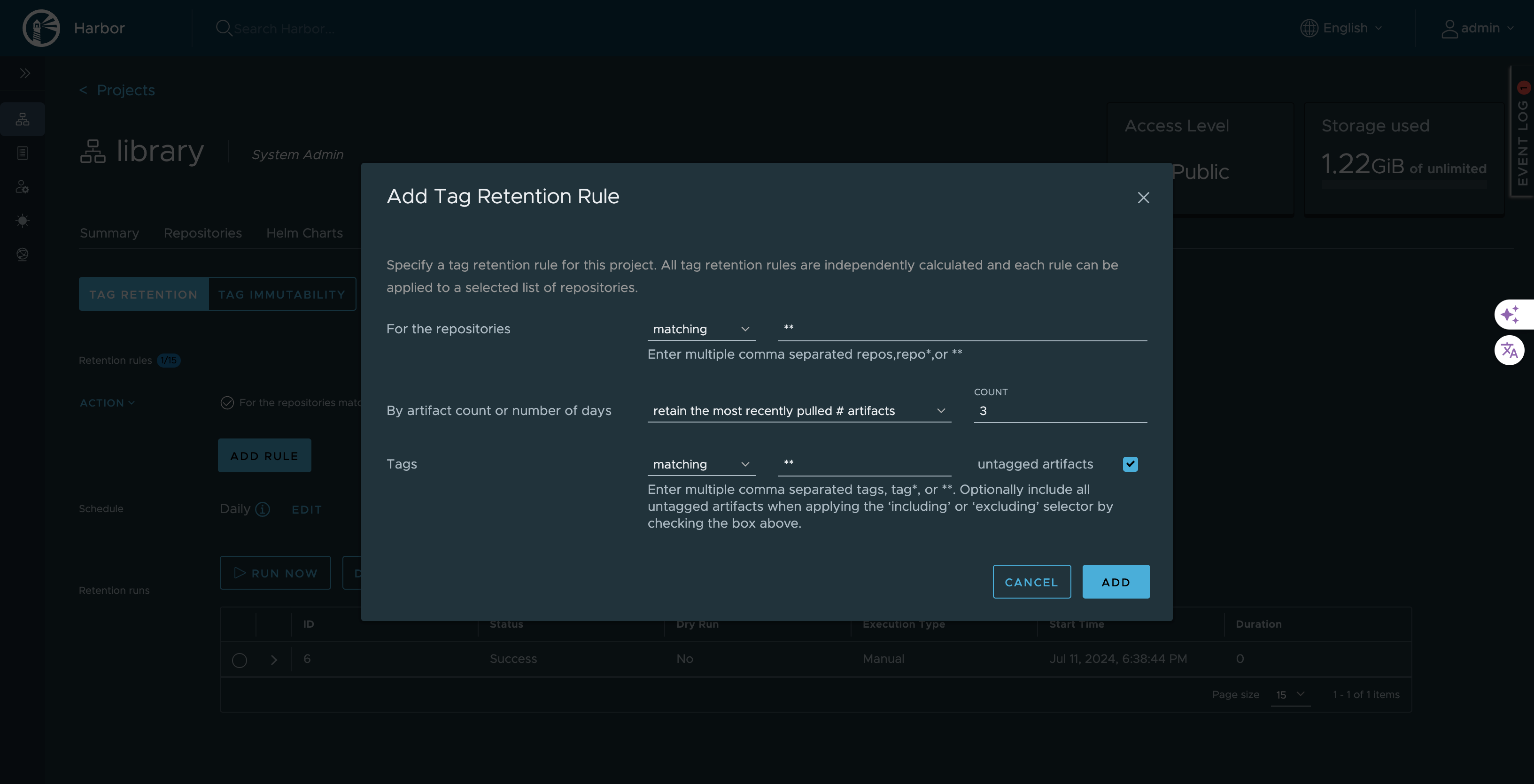
Add retention rule
Click: Add Rule
Configure:
- Repositories : matching**(all repositories)
- By artifact count : Retain the most recently pulled3artifacts
- Tags : matching**(all tags)
- Untagged artifacts : ✓ Checked (delete untagged)This keeps last 3 pulled images and deletes others.
-
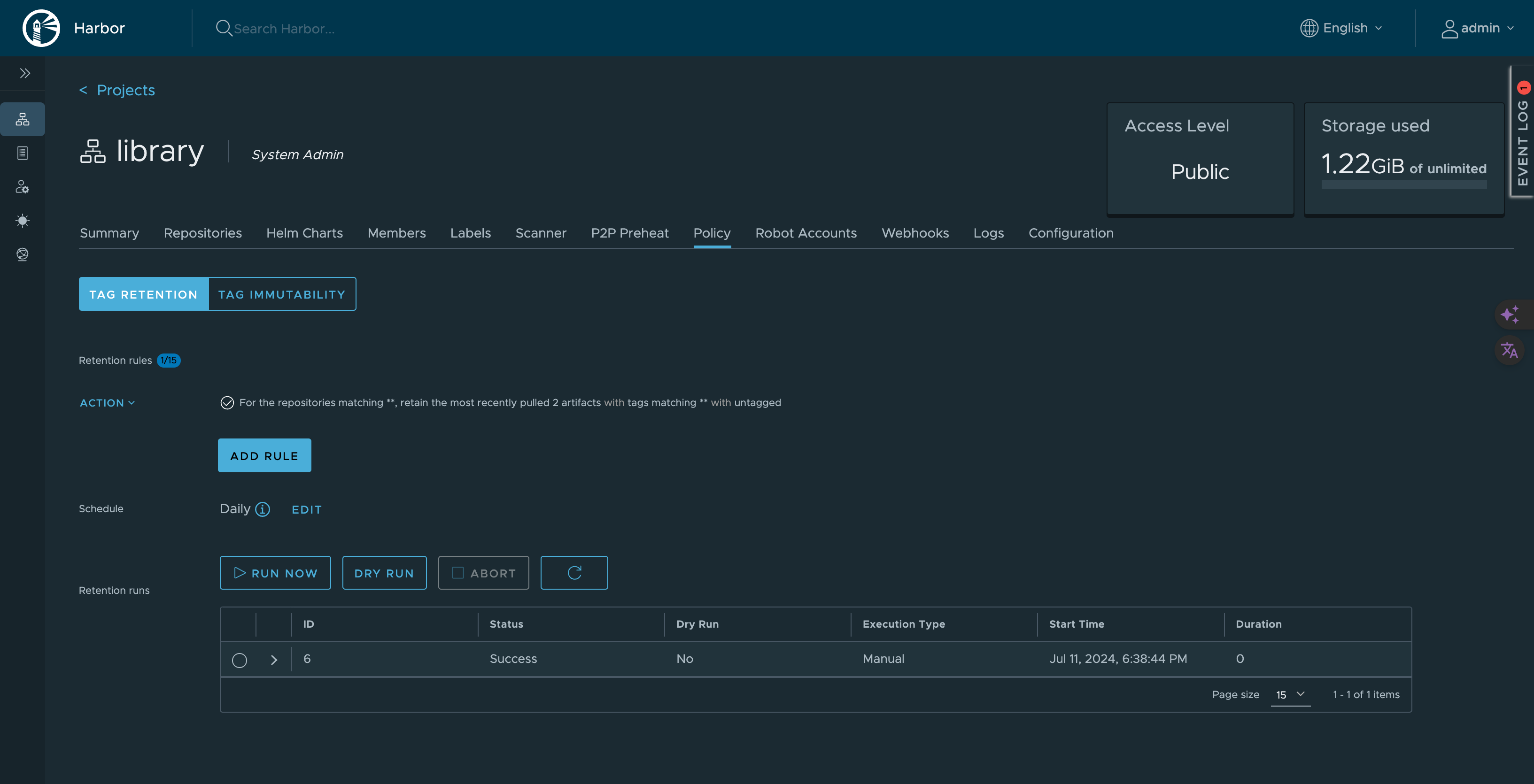
Schedule retention policy
Click: Add Retention Rule → Schedule
Configure schedule:
- Type : Daily / Weekly / Monthly
- Time : 02:00 AM (off-peak)
- Cron :0 2 * * *(2 AM daily)Click: Save
-
Test retention policy
Click: Dry Run
This shows what would be deleted without actually deleting.
Part 11: Enable Vulnerability Scanning
Harbor uses Trivy to scan images for vulnerabilities.
-
Configure automatic scanning
- Go to: Projects → library → Configuration
- Enable: Automatically scan images on push
- Click: Save
-
Manual scan existing image
- Go to: Projects → library → Repositories → nginx
- Select tag: latest
- Click: Scan
-
View scan results
- Click on tag
- View: Vulnerabilities tab
- See: Critical, High, Medium, Low vulnerabilities
-
Set CVE allowlist (optional)
- Go to: Projects → library → Configuration
- Add CVE IDs to allow despite vulnerabilities
- Use for false positives or accepted risks
Managing Harbor Service
- Check Harbor status
sudo systemctl status harbor
- Stop Harbor
sudo systemctl stop harbor
or
    cd /opt/harbor
    sudo docker compose down
- Start Harbor
sudo systemctl start harbor
or
    cd /opt/harbor
    sudo docker compose up -d
- Restart Harbor
sudo systemctl restart harbor
- View Harbor logs
    cd /opt/harbor
    sudo docker compose logs -f
- View specific service logs
sudo docker compose logs -f harbor-core
Backup and Restore
- Backup Harbor data
    # Stop Harbor
    sudo systemctl stop harbor

    # Backup data directory
    sudo tar -czf harbor-data-backup-$(date +%Y%m%d).tar.gz /data

    # Backup configuration
    sudo cp /opt/harbor/harbor.yml /backup/harbor-config-$(date +%Y%m%d).yml

    # Backup database
    sudo docker exec harbor-db pg_dumpall -U postgres > harbor-db-backup-$(date +%Y%m%d).sql

    # Start Harbor
    sudo systemctl start harbor
- Restore Harbor data
    # Stop Harbor
    sudo systemctl stop harbor

    # Restore data directory
    sudo tar -xzf harbor-data-backup-YYYYMMDD.tar.gz -C /

    # Restore configuration
    sudo cp /backup/harbor-config-YYYYMMDD.yml /opt/harbor/harbor.yml

    # Restore database
    sudo docker exec -i harbor-db psql -U postgres < harbor-db-backup-YYYYMMDD.sql

    # Start Harbor
    sudo systemctl start harbor
Common Issues and Fixes
-
Harbor containers not starting
Cause: Port conflict or insufficient resources
Fix:
    # Check if port 8080 is in use
    sudo ss -tulnp | grep 8080

    # Check Docker logs
    cd /opt/harbor
    sudo docker compose logs

    # Check system resources
    free -h
    df -h
-
Cannot login to Harbor
Cause: Wrong credentials or database issue
Fix:
- Verify admin password in harbor.yml
- Reset admin password:
      cd /opt/harbor
      sudo docker compose exec harbor-core harbor-core password-reset
-
Image push fails
Cause: Storage full or permission issues
Fix:
    # Check disk space
    df -h /data

    # Check Harbor logs
    sudo docker compose logs -f registry

    # Check data directory permissions
    sudo ls -la /data
-
SSL certificate errors
Cause: Nginx certificate misconfigured
Fix:
    # Verify certificate
    openssl x509 -in /etc/nginx/ssl/arpansahu.space/fullchain.pem -noout -dates

    # Check Nginx configuration
    sudo nginx -t

    # Reload Nginx
    sudo systemctl reload nginx
-
Vulnerability scanning not working
Cause: Trivy adapter not running or internet connectivity
Fix:
    # Check Trivy adapter
    sudo docker compose ps trivy-adapter

    # Check Trivy logs
    sudo docker compose logs trivy-adapter

    # Update Trivy database manually
    sudo docker compose exec trivy-adapter /home/scanner/trivy --download-db-only
Security Best Practices
-
Use strong passwords
- Admin password: minimum 16 characters
- Database password: minimum 16 characters
- Robot account tokens: treat as secrets
-
Enable HTTPS only
- Never use HTTP for Harbor
- Always proxy through Nginx with TLS
-
Implement RBAC
- Create projects with limited access
- Use robot accounts for automation
- Assign minimal required permissions
-
Enable vulnerability scanning
- Automatically scan on push
- Set CVE severity thresholds
- Block deployment of vulnerable images
-
Configure image retention
- Automatically delete old images
- Keep only necessary image versions
- Schedule during off-peak hours
-
Regular backups
    # Automate with cron
    sudo crontab -e
Add:
0 2 * * * /usr/local/bin/backup-harbor.sh
- Monitor logs
    # Regular log review
    sudo docker compose logs --since 24h | grep ERROR
Performance Optimization
-
Configure garbage collection
- Go to: Administration → Garbage Collection
- Schedule: Weekly at 2 AM
- This removes unreferenced image layers
-
Optimize database
    # Run vacuum on PostgreSQL
    sudo docker compose exec harbor-db vacuumdb -U postgres -d registry
-
Configure resource limits
Edit docker-compose.yml (auto-generated):
    services:
      registry:
        deploy:
          resources:
            limits:
              memory: 2G
            reservations:
              memory: 512M
-
Enable Redis cache
Harbor uses Redis by default for caching.
Increase Redis memory if needed.
Monitoring Harbor
- Check Harbor health
curl -k https://harbor.arpansahu.space/api/v2.0/health
- Monitor Docker resources
sudo docker stats
- Check disk usage
du -sh /data/*
- View system logs
sudo journalctl -u harbor -f
Updating Harbor
-
Backup current installation
Follow backup procedure above.
-
Download new Harbor version
    cd /opt
    sudo wget https://github.com/goharbor/harbor/releases/download/vX.Y.Z/harbor-offline-installer-vX.Y.Z.tgz
- Stop current Harbor
sudo systemctl stop harbor
- Extract new version
    sudo tar -xzvf harbor-offline-installer-vX.Y.Z.tgz
    sudo mv harbor harbor-old
    sudo mv harbor-new harbor
- Copy configuration
sudo cp harbor-old/harbor.yml harbor/harbor.yml
- Run migration
    cd /opt/harbor
    sudo ./install.sh --with-notary --with-trivy --with-chartmuseum
- Start Harbor
sudo systemctl start harbor
Final Verification Checklist
Run these commands to verify Harbor is working:
# Check all containers
sudo docker compose ps

# Check systemd service
sudo systemctl status harbor

# Check local access
curl -I http://127.0.0.1:8080

# Check HTTPS access
curl -I https://harbor.arpansahu.space

# Check Nginx config
sudo nginx -t

# Check firewall
sudo ufw status | grep -E '(80|443)'

# Test Docker login
docker login harbor.arpansahu.space
Then test in browser:
- Access: https://harbor.arpansahu.space
- Login with admin credentials
- Create test project
- Push test image
- Scan image for vulnerabilities
- Verify retention policy configured
What This Setup Provides
After following this guide, you will have:
- Self-hosted private Docker registry
- HTTPS access via Nginx reverse proxy
- Automatic startup with systemd
- Vulnerability scanning with Trivy
- Image signing with Notary
- Helm chart repository
- Automatic image retention
- Web UI for management
- Robot accounts for CI/CD
- Production-ready configuration
Example Configuration Summary
| Component | Value |
|---|---|
| Harbor URL | https://harbor.arpansahu.space |
| Internal Port | 8080 (localhost only) |
| Admin User | admin |
| Default Project | library |
| Data Directory | /data |
| Config File | /opt/harbor/harbor.yml |
| Service File | /etc/systemd/system/harbor.service |
Architecture Summary
Internet (HTTPS)
   │
   └─ Nginx (TLS Termination)
        │ [Wildcard Certificate: *.arpansahu.space]
        │
        └─ harbor.arpansahu.space (Port 443 → 8080)
             │
             └─ Harbor Stack (Docker Compose)
                  ├─ Harbor Core (API + Logic)
                  ├─ Harbor Portal (Web UI)
                  ├─ Registry (Image Storage)
                  ├─ PostgreSQL (Metadata)
                  ├─ Redis (Cache)
                  ├─ Trivy (Vulnerability Scanner)
                  ├─ Notary (Image Signing)
                  └─ ChartMuseum (Helm Charts)
Key Rules to Remember
- Harbor internal port (8080) never exposed externally
- System Nginx handles all TLS termination
- Use systemd for automatic startup
- Robot accounts for CI/CD pipelines
- Configure retention to manage storage
- Enable vulnerability scanning on push
- Regular backups of /data directory
- Monitor disk usage in /data
- Use RBAC for multi-tenant access
- Keep Harbor updated
Troubleshooting
1. 413 Request Entity Too Large Error
Symptom:
Docker push fails with
413 Request Entity Too Large
when pushing large images.
Cause:
Nginx
client_max_body_size
limit is too small (default is 1MB).
Solution:
- Edit system nginx configuration:
sudo nano /etc/nginx/sites-available/services
- Find the Harbor location block and add/update:
   location / {
       client_max_body_size 2G;  # Adjust as needed
       proxy_pass http://127.0.0.1:8080;
       # ... rest of config
   }
- Test and reload nginx:
   sudo nginx -t
   sudo systemctl reload nginx
Note:
Harbor's internal nginx is already set to
client_max_body_size 0;
(unlimited) in its
/etc/nginx/nginx.conf
, so you only need to fix the external/system nginx configuration at
/etc/nginx/sites-available/services
.
Verify Harbor's internal nginx (optional):
docker exec nginx cat /etc/nginx/nginx.conf | grep client_max_body_size
# Should show: client_max_body_size 0;
2. Cannot Connect to Harbor
Check these:
# 1. Is Harbor running?
sudo systemctl status harbor
docker ps | grep harbor

# 2. Is nginx running?
sudo systemctl status nginx

# 3. Check logs
sudo journalctl -u harbor -n 50
docker logs nginx
3. Login Issues
# Reset admin password
cd /opt/harbor
sudo docker-compose stop
sudo ./prepare
sudo docker-compose up -d
4. Disk Space Full
# Check disk usage
df -h /data

# Run garbage collection
docker exec harbor-core harbor-gc

# Or via UI: Administration → Garbage Collection → Run Now
5. Slow Image Pushes
Check nginx configuration for these settings:
proxy_buffering off;
proxy_request_buffering off;
proxy_connect_timeout 300;
proxy_send_timeout 300;
proxy_read_timeout 300;
Next Steps
After setting up Harbor:
- Create projects for different teams
- Configure robot accounts for CI/CD
- Set up vulnerability scan policies
- Configure image retention rules
- Enable garbage collection
- Set up replication (if multi-site)
- Integrate with CI/CD pipelines
My Harbor instance: https://harbor.arpansahu.space
For CI/CD integration, see Jenkins documentation.
FROM python:3.10.7

WORKDIR /app

# Copy requirements first for better layer caching
COPY requirements.txt .

# Install dependencies
RUN pip3 install --no-cache-dir -r requirements.txt

# Copy the rest of the application
COPY . .

EXPOSE 8000

CMD bash -c "python manage.py migrate --noinput && python manage.py collectstatic --noinput && gunicorn --bind 0.0.0.0:8000 arpansahu_dot_me.wsgi"
Create a file named docker-compose.yml and add following lines in it
services:
  web:
    build:  # This section will be used when running locally
      context: .
      dockerfile: Dockerfile
    image: ${DOCKER_REGISTRY}/${DOCKER_REPOSITORY}/${DOCKER_IMAGE_NAME}:${DOCKER_IMAGE_TAG}
    env_file: ./.env
    container_name: ${ENV_PROJECT_NAME}
    # volumes:
    #   - .:/app  # Only for local development, commented out for production deployment
    ports:
      - "${DOCKER_PORT}:${DOCKER_PORT}"
    restart: unless-stopped
What is Difference in Dockerfile and docker-compose.yml?
A Dockerfile is a simple text file that contains the commands a user could call to assemble an image whereas Docker Compose is a tool for defining and running multi-container Docker applications.
Docker Compose define the services that make up your app in docker-compose.yml so they can be run together in an isolated environment. It gets an app running in one command by just running docker-compose up. Docker compose uses the Dockerfile if you add the build command to your project’s docker-compose.yml. Your Docker workflow should be to build a suitable Dockerfile for each image you wish to create, then use compose to assemble the images using the build command.
Running Docker
docker compose up --build --detach
--detach tag is for running the docker even if terminal is closed
if you remove this tag it will be attached to terminal, and you will be able to see the logs too
--build tag with docker compose up will force image to be rebuild every time before starting the container
Step 3: Containerizing with Kubernetes
K3s Kubernetes with Portainer Agent
Lightweight Kubernetes cluster using K3s with Portainer Agent for centralized management through your existing Portainer instance.
Prerequisites
- Ubuntu Server 22.04+
- At least 1 CPU core and 512MB RAM (2GB recommended)
- Existing Portainer instance (https://portainer.arpansahu.space)
- Root or sudo access
Quick Start
# 1. Copy files to server
scp -r kubernetes_k3s/ user@server:"AWS Deployment/"

# 2. SSH to server
ssh user@server
cd "AWS Deployment/kubernetes_k3s"

# 3. Create .env from example
cp .env.example .env
nano .env  # Edit if needed

# 4. Install K3s
chmod +x install.sh
sudo ./install.sh

# 5. Deploy Portainer Agent
export KUBECONFIG=/home/$USER/.kube/config
kubectl apply -n portainer -f https://downloads.portainer.io/ce2-19/portainer-agent-k8s-nodeport.yaml

# 6. Get agent port
kubectl get svc -n portainer portainer-agent

# 7. Connect to Portainer
# Login to: https://portainer.arpansahu.space
# Go to: Environments → Add Environment → Agent
# Enter: <server-ip>:<nodeport>
Configuration
.env.example
:
K3S_VERSION=stable
K3S_CLUSTER_NAME=arpansahu-k3s
PORTAINER_AGENT_NAMESPACE=portainer
PORTAINER_AGENT_PORT=9001
PORTAINER_URL=https://portainer.arpansahu.space
K3S_DATA_DIR=/var/lib/rancher/k3s
K3S_DISABLE_TRAEFIK=true
Installation Details
kubectl Installation
The
install.sh
script first installs kubectl if not already present:
- Downloads latest stable kubectl binary
- Installs to
/usr/local/bin/kubectl
- Skips if kubectl already exists
K3s Installation
The
install.sh
script:
1. Installs K3s (lightweight Kubernetes)
2. Waits for cluster to be ready
3. Sets up kubeconfig for non-root user (
~/.kube/config
)
4. Creates portainer namespace
Portainer Agent Deployment
Deploy the agent manually after K3s installation:
# Set kubeconfig
export KUBECONFIG=/home/$USER/.kube/config

# Deploy agent
kubectl apply -n portainer -f https://downloads.portainer.io/ce2-19/portainer-agent-k8s-nodeport.yaml

# Verify deployment
kubectl get pods -n portainer
kubectl get svc -n portainer
Connecting to Portainer
Get Connection Details
# Get server IP
hostname -I | awk '{print $1}'

# Get NodePort
kubectl get svc -n portainer portainer-agent -o jsonpath='{.spec.ports[0].nodePort}'

# Example endpoint: 192.168.1.200:30778
Add Environment in Portainer
- Login: https://portainer.arpansahu.space
- Environments → Add environment
- Select Agent
- Environment details:
-
Name:
K3s Cluster -
Environment URL:
192.168.1.200:30778(use your IP and port) - Click Connect
Verify Connection
# Check agent status
kubectl get pods -n portainer

# View agent logs
kubectl logs -n portainer -l app=portainer-agent

# Test connectivity
curl http://localhost:<nodeport>
Managing Applications
Via Portainer UI
- Select K3s environment in Portainer
- Applications → Add application
- Configure deployment settings
- Click Deploy
Via kubectl
# Create deployment
kubectl create deployment nginx --image=nginx:alpine

# Expose as service
kubectl expose deployment nginx --port=80 --type=NodePort

# Check resources
kubectl get all
kubectl get pods
kubectl get services

# Get service URL
kubectl get svc nginx -o jsonpath='{.spec.ports[0].nodePort}'
# Access: http://<server-ip>:<nodeport>
Via YAML Manifests
apiVersion: apps/v1
kind: Deployment
metadata:
  name: my-app
spec:
  replicas: 2
  selector:
    matchLabels:
      app: my-app
  template:
    metadata:
      labels:
        app: my-app
    spec:
      containers:
      - name: my-app
        image: nginx:alpine
        ports:
        - containerPort: 80
---
apiVersion: v1
kind: Service
metadata:
  name: my-app
spec:
  type: NodePort
  selector:
    app: my-app
  ports:
    - port: 80
      targetPort: 80
      nodePort: 30080
Apply:
kubectl apply -f deployment.yaml
kubectl Commands
Basic Operations
# Cluster information
kubectl cluster-info
kubectl get nodes

# View resources
kubectl get all -A
kubectl get pods -A
kubectl get services -A
kubectl get namespaces

# Describe resources
kubectl describe pod <pod-name>
kubectl describe svc <service-name>

# Logs
kubectl logs <pod-name>
kubectl logs -f <pod-name>  # Follow logs
kubectl logs <pod-name> --previous  # Previous container logs

# Execute commands
kubectl exec -it <pod-name> -- /bin/sh
kubectl exec <pod-name> -- ls /app

# Port forwarding
kubectl port-forward pod/<pod-name> 8080:80
kubectl port-forward svc/<service-name> 8080:80
Deployment Management
# Scale deployment
kubectl scale deployment <name> --replicas=3

# Update image
kubectl set image deployment/<name> container-name=new-image:tag

# Restart deployment
kubectl rollout restart deployment/<name>

# Rollout history
kubectl rollout history deployment/<name>

# Rollback
kubectl rollout undo deployment/<name>

# Delete resources
kubectl delete deployment <name>
kubectl delete service <name>
kubectl delete -f deployment.yaml
Namespace Management
# List namespaces
kubectl get namespaces

# Create namespace
kubectl create namespace my-namespace

# Switch context to namespace
kubectl config set-context --current --namespace=my-namespace

# Delete namespace
kubectl delete namespace my-namespace
Backup and Restore
Backup Script
#!/bin/bash
# backup-k3s.sh

BACKUP_DIR="/backup/k3s/$(date +%Y%m%d_%H%M%S)"
mkdir -p "$BACKUP_DIR"

# Backup K3s data directory
sudo tar czf "$BACKUP_DIR/k3s-data.tar.gz" /var/lib/rancher/k3s

# Backup all Kubernetes resources
kubectl get all -A -o yaml > "$BACKUP_DIR/all-resources.yaml"

# Backup persistent volumes
kubectl get pv,pvc -A -o yaml > "$BACKUP_DIR/volumes.yaml"

# Backup namespaces and configs
kubectl get namespaces -o yaml > "$BACKUP_DIR/namespaces.yaml"
kubectl get configmaps -A -o yaml > "$BACKUP_DIR/configmaps.yaml"
kubectl get secrets -A -o yaml > "$BACKUP_DIR/secrets.yaml"

echo "Backup completed: $BACKUP_DIR"
Restore Script
#!/bin/bash
# restore-k3s.sh

BACKUP_DIR="/backup/k3s/20260201_100000"

# Stop K3s
sudo systemctl stop k3s

# Restore K3s data
sudo tar xzf "$BACKUP_DIR/k3s-data.tar.gz" -C /

# Start K3s
sudo systemctl start k3s
sleep 30

# Wait for cluster to be ready
until kubectl get nodes | grep -q "Ready"; do
    echo "Waiting for cluster..."
    sleep 5
done

# Restore resources
kubectl apply -f "$BACKUP_DIR/all-resources.yaml"

echo "Restore completed"
Troubleshooting
K3s Issues
# Check K3s status
sudo systemctl status k3s

# View K3s logs
sudo journalctl -u k3s -n 100 --no-pager
sudo journalctl -u k3s -f  # Follow logs

# Restart K3s
sudo systemctl restart k3s

# Check K3s version
k3s --version

# Check ports
sudo netstat -tlnp | grep -E '6443|10250'
Portainer Agent Issues
# Check agent pod status
kubectl get pods -n portainer

# View agent logs
kubectl logs -n portainer -l app=portainer-agent
kubectl logs -n portainer -l app=portainer-agent -f  # Follow

# Check agent service
kubectl get svc -n portainer

# Describe agent pod
kubectl describe pod -n portainer -l app=portainer-agent

# Test agent port
kubectl get svc -n portainer portainer-agent -o jsonpath='{.spec.ports[0].nodePort}'
curl http://localhost:<nodeport>

# Restart agent
kubectl rollout restart deployment -n portainer portainer-agent
Pod Issues
# Check pod status
kubectl get pods -n <namespace>

# Describe pod (shows events)
kubectl describe pod <pod-name> -n <namespace>

# View pod logs
kubectl logs <pod-name> -n <namespace>

# Check events
kubectl get events -A --sort-by='.lastTimestamp'

# Check node resources
kubectl top nodes
kubectl describe nodes
Network Issues
# Check CoreDNS pods
kubectl get pods -n kube-system -l k8s-app=kube-dns

# Test DNS resolution
kubectl run -it --rm debug --image=busybox --restart=Never -- nslookup kubernetes.default

# Check network pods
kubectl get pods -n kube-system

# Restart CoreDNS
kubectl rollout restart deployment -n kube-system coredns
Storage Issues
# Check persistent volumes
kubectl get pv
kubectl get pvc -A

# Describe PVC
kubectl describe pvc <pvc-name> -n <namespace>

# Check disk space
df -h
du -sh /var/lib/rancher/k3s/*
Connection Issues from Portainer
# From Portainer server, test connection
telnet <k3s-server-ip> <nodeport>
curl http://<k3s-server-ip>:<nodeport>

# Check firewall
sudo ufw status
sudo ufw allow <nodeport>/tcp

# Check if agent is listening
sudo netstat -tlnp | grep <nodeport>
Performance Issues
# Check resource usage
kubectl top nodes
kubectl top pods -A

# Check system resources
free -h
df -h
vmstat 5

# Check K3s resource limits
sudo cat /etc/systemd/system/k3s.service
Uninstall K3s
# Complete uninstall
sudo /usr/local/bin/k3s-uninstall.sh

# Verify removal
which k3s
which kubectl
ls /var/lib/rancher/k3s
Security Best Practices
-
Kubeconfig Permissions
: Ensure
~/.kube/confighas proper permissions (600) - RBAC : Use role-based access control for users and services
- Network Policies : Implement network policies for pod communication
- Secrets Management : Use Kubernetes secrets for sensitive data
- Regular Updates : Keep K3s and container images updated
- Resource Limits : Set CPU/memory limits on pods
- Security Context : Define security contexts for pods
Resources
- K3s Official Documentation
- Portainer Agent Documentation
- kubectl Cheat Sheet
- Kubernetes Documentation
Support
For issues:
1. Check
Troubleshooting
section
2. View K3s logs:
sudo journalctl -u k3s -f
3. View agent logs:
kubectl logs -n portainer -l app=portainer-agent
4.
K3s GitHub Issues
5.
Portainer Community Forums
SSL Certificates for Kubernetes
Overview
K3s requires SSL certificates for TLS Ingress and secure pod communication (Java apps, Kafka, etc.). Certificates are automatically managed - see SSL Automation Documentation .
Quick Reference
Automated Certificate Management:
- ✅ K3s secrets updated after SSL renewal (arpansahu-tls, kafka-ssl-keystore)
- ✅ Keystores stored in
/var/lib/rancher/k3s/ssl/keystores/
- ✅ Uploaded to MinIO for Django projects
- ✅ See
Django Integration Guide
Manual testing:
# On server
cd ~/k3s_scripts
./1_renew_k3s_ssl_keystores.sh   # Update K3s secrets
./2_upload_keystores_to_minio.sh # Upload to MinIO
Using Certificates in Deployments
Ingress with TLS
apiVersion: networking.k8s.io/v1
kind: Ingress
metadata:
  name: app-ingress
spec:
  tls:
  - hosts:
    - app.arpansahu.space
    secretName: arpansahu-tls  # Auto-managed secret
  rules:
  - host: app.arpansahu.space
    http:
      paths:
      - path: /
        pathType: Prefix
        backend:
          service:
            name: app-service
            port:
              number: 80
Kafka Pod with SSL
apiVersion: apps/v1
kind: Deployment
metadata:
  name: kafka
spec:
  template:
    spec:
      containers:
      - name: kafka
        image: confluentinc/cp-kafka:7.8.0
        env:
        - name: KAFKA_SSL_KEYSTORE_LOCATION
          value: /etc/kafka/secrets/kafka.keystore.jks
        - name: KAFKA_SSL_KEYSTORE_PASSWORD
          valueFrom:
            secretKeyRef:
              name: kafka-ssl-keystore  # Auto-managed secret
              key: keystore-password
        volumeMounts:
        - name: kafka-ssl
          mountPath: /etc/kafka/secrets
          readOnly: true
      volumes:
      - name: kafka-ssl
        secret:
          secretName: kafka-ssl-keystore
Monitoring
# List secrets
kubectl get secrets

# Check certificate expiry
kubectl get secret arpansahu-tls -o jsonpath='{.data.tls\.crt}' | \
  base64 -d | openssl x509 -noout -dates

# View keystore secret
kubectl describe secret kafka-ssl-keystore
Troubleshooting
Pods not using new certificates:
- Restart deployment:
kubectl rollout restart deployment/your-app
- K8s doesn't auto-reload secrets - manual restart required
Certificate verification failed:
- Check secret exists:
kubectl get secret arpansahu-tls
- Verify expiry date (see Monitoring above)
- Force renewal: See
SSL Automation
For complete automation details, troubleshooting, and manual procedures: SSL Automation Documentation
Step 4: Serving the requests from Nginx
Nginx - Web Server & Reverse Proxy
Nginx is a high-performance web server and reverse proxy used to route HTTPS traffic to all services.
Access Details
- HTTP Port: 80 (redirects to HTTPS)
- HTTPS Port: 443
-
Config Directory:
/etc/nginx/sites-available/ -
Enabled Sites:
/etc/nginx/sites-enabled/ -
SSL Certificates:
/etc/nginx/ssl/arpansahu.space/ -
Logs:
/var/log/nginx/
Quick Install
cd "AWS Deployment/nginx"
chmod +x install.sh
./install.sh
Installation Script
```bash file=install.sh
### SSL Certificate Installation

```bash file=install-ssl.sh
Prerequisites for SSL:
1. Namecheap account with API access enabled
2. Server IP whitelisted in Namecheap API settings
3. Environment variables set:
export NAMECHEAP_USERNAME="your_username"
export NAMECHEAP_API_KEY="your_api_key"
export NAMECHEAP_SOURCEIP="your_server_ip"
./install-ssl.sh
Manual Installation
1. Install Nginx
sudo apt update
sudo apt install -y nginx
sudo systemctl start nginx
sudo systemctl enable nginx
2. Configure Firewall
sudo ufw allow 80/tcp
sudo ufw allow 443/tcp
sudo ufw reload
3. Configure DNS
Add A records to your DNS provider:
Type: A Record
Name: @
Value: YOUR_SERVER_IP

Type: A Record
Name: *
Value: YOUR_SERVER_IP
This allows all subdomains (*.arpansahu.space) to point to your server.
4. Create Service Configuration
sudo nano /etc/nginx/sites-available/services
Add server blocks for each service (see individual service nginx configs).
5. Enable Configuration
sudo ln -sf /etc/nginx/sites-available/services /etc/nginx/sites-enabled/
sudo nginx -t
sudo systemctl reload nginx
SSL Certificate Setup (acme.sh)
Why acme.sh?
- Native DNS-01 challenge support
- Works perfectly with Namecheap
- Automatic renewal via cron
- Supports wildcard certificates
- Simpler than Certbot for DNS challenges
Install acme.sh
curl https://get.acme.sh | sh
source ~/.bashrc
acme.sh --set-default-ca --server letsencrypt
Configure Namecheap API
- Login to Namecheap → Profile → Tools → API Access
- Enable API Access
- Whitelist your server's public IP
- Get API credentials
Issue Wildcard Certificate
export NAMECHEAP_USERNAME="your_username"
export NAMECHEAP_API_KEY="your_api_key"
export NAMECHEAP_SOURCEIP="your_server_ip"

acme.sh --issue \
  --dns dns_namecheap \
  -d arpansahu.space \
  -d "*.arpansahu.space" \
  --server letsencrypt
Install Certificate for Nginx
sudo mkdir -p /etc/nginx/ssl/arpansahu.space

acme.sh --install-cert \
  -d arpansahu.space \
  -d "*.arpansahu.space" \
  --key-file /etc/nginx/ssl/arpansahu.space/privkey.pem \
  --fullchain-file /etc/nginx/ssl/arpansahu.space/fullchain.pem \
  --reloadcmd "systemctl reload nginx"
Setup Auto-Renewal
crontab -e
Add:
0 0 * * * ~/.acme.sh/acme.sh --cron --home ~/.acme.sh > /dev/null
Nginx Configuration Structure
Each service has its own nginx config with this pattern:
# HTTP to HTTPS redirect
server {
    listen 80;
    listen [::]:80;
    server_name service.arpansahu.space;
    return 301 https://$host$request_uri;
}

# HTTPS server block
server {
    listen 443 ssl http2;
    listen [::]:443 ssl http2;
    server_name service.arpansahu.space;

    # SSL Configuration
    ssl_certificate /etc/nginx/ssl/arpansahu.space/fullchain.pem;
    ssl_certificate_key /etc/nginx/ssl/arpansahu.space/privkey.pem;
    ssl_protocols TLSv1.2 TLSv1.3;

    # Proxy to backend service
    location / {
        proxy_pass http://127.0.0.1:PORT;
        proxy_set_header Host $host;
        proxy_set_header X-Real-IP $remote_addr;
        proxy_set_header X-Forwarded-For $proxy_add_x_forwarded_for;
        proxy_set_header X-Forwarded-Proto https;
    }
}
Service Routing Table
| Service | Domain | Backend Port |
|---|---|---|
| Harbor | harbor.arpansahu.space | 8888 |
| RabbitMQ | rabbitmq.arpansahu.space | 15672 |
| PgAdmin | pgadmin.arpansahu.space | 5050 |
| SSH Terminal | ssh.arpansahu.space | 8084 |
| Jenkins | jenkins.arpansahu.space | 8080 |
| Portainer | portainer.arpansahu.space | 9443 |
| Redis (stream) | redis.arpansahu.space | 6380 (TCP) |
Common Commands
Test configuration:
sudo nginx -t
Reload (no downtime):
sudo systemctl reload nginx
Restart:
sudo systemctl restart nginx
View status:
sudo systemctl status nginx
View logs:
# Access logs
sudo tail -f /var/log/nginx/access.log

# Error logs
sudo tail -f /var/log/nginx/error.log

# Service-specific
sudo tail -f /var/log/nginx/services.access.log
Check active connections:
sudo ss -tuln | grep -E ':80|:443'
List enabled sites:
ls -la /etc/nginx/sites-enabled/
Redis TCP Stream Configuration
Redis requires TCP stream instead of HTTP proxy:
stream {
    upstream redis_backend {
        server 127.0.0.1:6380;
    }

    server {
        listen 6379 ssl;
        proxy_pass redis_backend;
        proxy_connect_timeout 1s;

        ssl_certificate /etc/nginx/ssl/arpansahu.space/fullchain.pem;
        ssl_certificate_key /etc/nginx/ssl/arpansahu.space/privkey.pem;
        ssl_protocols TLSv1.2 TLSv1.3;
    }
}
This goes in
/etc/nginx/nginx.conf
at the root level (outside http block).
Troubleshooting
502 Bad Gateway:
# Check backend service is running
sudo ss -tuln | grep PORT

# Check nginx can connect
curl http://127.0.0.1:PORT

# Check logs
sudo tail -f /var/log/nginx/error.log
Certificate errors:
# Check certificate files exist
ls -la /etc/nginx/ssl/arpansahu.space/

# Check certificate validity
openssl x509 -in /etc/nginx/ssl/arpansahu.space/fullchain.pem -text -noout

# Check acme.sh status
acme.sh --list
Configuration not loading:
# Test syntax
sudo nginx -t

# Check enabled sites
ls -la /etc/nginx/sites-enabled/

# Reload nginx
sudo systemctl reload nginx
Port already in use:
# Find what's using port 80/443
sudo ss -tuln | grep -E ':80|:443'
sudo lsof -i :80
Security Best Practices
- Hide server version:
server_tokens off;
- Enable HTTP/2:
listen 443 ssl http2;
- Strong SSL protocols:
   ssl_protocols TLSv1.2 TLSv1.3;
   ssl_prefer_server_ciphers off;
- Security headers:
   add_header X-Frame-Options "SAMEORIGIN" always;
   add_header X-Content-Type-Options "nosniff" always;
   add_header X-XSS-Protection "1; mode=block" always;
- Rate limiting:
   limit_req_zone $binary_remote_addr zone=general:10m rate=10r/s;
   limit_req zone=general burst=20 nodelay;
Certificate Renewal
acme.sh automatically renews certificates via cron. To manually renew:
acme.sh --renew -d arpansahu.space -d "*.arpansahu.space" --force
Check renewal log:
cat ~/.acme.sh/arpansahu.space/arpansahu.space.log
SSL Certificate Automation & Renewal
Complete SSL automation is now centralized. See SSL Automation Documentation for:
- ✅ Automated renewal (acme.sh + deploy_certs.sh)
- ✅ Nginx certificate deployment
- ✅ Kafka keystore regeneration
- ✅ Kubernetes secret updates
- ✅ MinIO upload for Django projects
- ✅ Complete troubleshooting guide
Quick verification:
# Check certificate expiry
openssl x509 -in /etc/nginx/ssl/arpansahu.space/fullchain.pem -noout -dates

# Test automation
ssh arpansahu@arpansahu.space '~/deploy_certs.sh'
Backup Configuration
# Backup nginx configs
sudo tar -czf nginx-backup-$(date +%Y%m%d).tar.gz \
  /etc/nginx/sites-available/ \
  /etc/nginx/sites-enabled/ \
  /etc/nginx/nginx.conf \
  /etc/nginx/ssl/

# Backup SSL certificates
tar -czf ssl-backup-$(date +%Y%m%d).tar.gz ~/.acme.sh/
Migration to New Server
- Backup on old server (see above)
- Install nginx on new server
- Restore configs
- Issue new certificates (acme.sh requires DNS validation)
- Update DNS records to new server IP
Architecture Diagram
Internet (Client)
   │
   ▼
[ Nginx - Port 443 (SSL/TLS Termination) ]
   │
   ├──▶ Harbor (8888)
   ├──▶ RabbitMQ (15672)
   ├──▶ PgAdmin (5050)
   ├──▶ SSH Terminal (8084)
   ├──▶ Jenkins (8080)
   └──▶ Portainer (9443)
Key Points:
- Nginx handles all SSL/TLS
- Backend services run on localhost (secure)
- Single wildcard certificate covers all subdomains
- Automatic certificate renewal
- Zero downtime reloads
Configuration Files
-
Installation:
install.sh -
SSL setup:
install-ssl.sh -
Main config:
/etc/nginx/nginx.conf -
Sites:
/etc/nginx/sites-available/ -
SSL certs:
/etc/nginx/ssl/arpansahu.space/ - Service configs: See individual service folders
Performance Tuning
# /etc/nginx/nginx.conf
worker_processes auto;
worker_connections 1024;

# Enable gzip
gzip on;
gzip_vary on;
gzip_proxied any;
gzip_types text/plain text/css application/json application/javascript;

# Buffer sizes
client_body_buffer_size 128k;
client_max_body_size 500M;
Monitoring
# Active connections
sudo ss -s

# Request rate
sudo tail -f /var/log/nginx/access.log | pv -l -i1 -r > /dev/null

# Error rate
sudo grep error /var/log/nginx/error.log | tail -20
After all these steps your Nginx configuration file located at /etc/nginx/sites-available/arpansahu-dot-me will be looking similar to this
# ================= SERVICE PROXY TEMPLATE =================

# HTTP → HTTPS redirect
server {
    listen 80;
    listen [::]:80;

    server_name arpansahu.space;
    return 301 https://$host$request_uri;
}

# HTTPS reverse proxy
server {
    listen 443 ssl http2;
    listen [::]:443 ssl http2;

    server_name arpansahu.space;

    # 🔐 Wildcard SSL (acme.sh + Namecheap DNS-01)
    ssl_certificate     /etc/nginx/ssl/arpansahu.space/fullchain.pem;
    ssl_certificate_key /etc/nginx/ssl/arpansahu.space/privkey.pem;

    ssl_protocols TLSv1.2 TLSv1.3;
    ssl_prefer_server_ciphers off;

    location / {
        proxy_pass http://0.0.0.0:8000;

        proxy_http_version 1.1;

        # Required headers
        proxy_set_header Host              $host;
        proxy_set_header X-Real-IP         $remote_addr;
        proxy_set_header X-Forwarded-For   $proxy_add_x_forwarded_for;
        proxy_set_header X-Forwarded-Proto https;

        # WebSocket support (safe for all services)
        proxy_set_header Upgrade $http_upgrade;
        proxy_set_header Connection "upgrade";
    }
}
Step 6: CI/CD using Jenkins
Jenkins (CI/CD Automation Server)
Jenkins is an open-source automation server that enables developers to build, test, and deploy applications through continuous integration and continuous delivery (CI/CD). This guide provides a complete, production-ready setup with Java 21, Jenkins LTS, Nginx reverse proxy, and comprehensive credential management.
Prerequisites
Before installing Jenkins, ensure you have:
- Ubuntu Server 22.04 LTS
- Nginx with SSL certificates configured
- Domain name (example: jenkins.arpansahu.space)
- Wildcard SSL certificate already issued (via acme.sh)
- Minimum 2GB RAM, 20GB disk space
- Root or sudo access
- Docker installed (for containerized builds)
Architecture Overview
Internet (HTTPS)
   │
   └─ Nginx (Port 443) - TLS Termination
        │
        └─ jenkins.arpansahu.space
             │
             └─ Jenkins (localhost:8080)
                  │
                  ├─ Jenkins Controller (Web UI + API)
                  ├─ Build Agents (local/remote)
                  ├─ Workspace (/var/lib/jenkins)
                  └─ Credentials Store
Key Principles:
- Jenkins runs on localhost only (port 8080)
- Nginx handles all TLS termination
- Credentials stored in Jenkins encrypted store
- Pipelines defined as code (Jenkinsfile)
- Docker-based builds for isolation
Why Jenkins
Advantages:
- Open-source and free
- Extensive plugin ecosystem (1800+)
- Pipeline as Code (Jenkinsfile)
- Distributed builds
- Docker integration
- GitHub/GitLab integration
- Email notifications
- Role-based access control
Use Cases:
- Automated builds on commit
- Automated testing
- Docker image building
- Deployment automation
- Scheduled jobs
- Integration with Harbor registry
- Multi-branch pipelines
Part 1: Install Java 21
Jenkins requires Java to run. We'll install OpenJDK 21 (latest LTS).
⚠️ Important: Java 17 support ends March 31, 2026. Use Java 21 for continued support.
Check Current Java Version
java -version
If you see Java 17 or older, follow the upgrade steps below.
Upgrade from Java 17 to Java 21 (If Needed)
If Jenkins is already installed on Java 17:
- Install Java 21
    sudo apt update
    sudo apt install -y openjdk-21-jdk
- Check Jenkins service status
sudo systemctl status jenkins
- Update Jenkins to use Java 21
    sudo systemctl stop jenkins
    sudo update-alternatives --config java
Select Java 21 from the list (e.g., `/usr/lib/jvm/java-21-openjdk-amd64/bin/java`)
- Verify Java version
java -version
Should show: `openjdk version "21.0.x"`
- Update JAVA_HOME for Jenkins
sudo nano /etc/default/jenkins
Add or update:
    JAVA_HOME="/usr/lib/jvm/java-21-openjdk-amd64"
    JENKINS_JAVA_CMD="$JAVA_HOME/bin/java"
- Restart Jenkins
    sudo systemctl start jenkins
    sudo systemctl status jenkins
-
Verify in Jenkins UI
Dashboard → Manage Jenkins → System Information → Look for
java.version(should be 21.x)
Fresh Installation of Java 21
For new installations:
- Update system packages
sudo apt update
- Install OpenJDK 21
sudo apt install -y openjdk-21-jdk
- Verify Java installation
java -version
Expected output:
    openjdk version "21.0.x" 2024-xx-xx
    OpenJDK Runtime Environment (build 21.0.x+x)
    OpenJDK 64-Bit Server VM (build 21.0.x+x, mixed mode, sharing)
- Set JAVA_HOME (optional but recommended)
sudo nano /etc/environment
Add:
JAVA_HOME="/usr/lib/jvm/java-21-openjdk-amd64"
Apply changes:
    source /etc/environment
    echo $JAVA_HOME
Part 2: Install Jenkins LTS
Jenkins Long-Term Support (LTS) releases are recommended for production environments. Current LTS: 2.528.3
- Add Jenkins repository key (both legacy and modern format for compatibility)
    # Modern keyring format (recommended)
    curl -fsSL https://pkg.jenkins.io/debian-stable/jenkins.io-2023.key | sudo gpg --dearmor -o /usr/share/keyrings/jenkins-archive-keyring.gpg

    # Also add legacy key for repository compatibility
    gpg --keyserver keyserver.ubuntu.com --recv-keys 7198F4B714ABFC68
    gpg --export 7198F4B714ABFC68 > /tmp/jenkins-key.gpg
    sudo gpg --dearmor < /tmp/jenkins-key.gpg > /usr/share/keyrings/jenkins-old-keyring.gpg
- Add Jenkins repository
echo "deb [signed-by=/usr/share/keyrings/jenkins-old-keyring.gpg] https://pkg.jenkins.io/debian-stable binary/" | sudo tee /etc/apt/sources.list.d/jenkins.list > /dev/null
- Update package list
sudo apt update
- Install Jenkins (latest LTS)
    # Install latest LTS version
    sudo apt install -y jenkins

    # Or install specific LTS version
    # sudo apt install -y jenkins=2.528.3
- Check installed version
jenkins --version
Expected: `2.528.3` or newer LTS
- Enable Jenkins service
sudo systemctl enable jenkins
- Start Jenkins service
sudo systemctl start jenkins
- Verify Jenkins is running
sudo systemctl status jenkins
Expected: Active (running)
- Check Jenkins is listening on port 8080
sudo ss -tulnp | grep 8080
Expected: Jenkins listening on 127.0.0.1:8080
Part 2.1: Upgrade Jenkins to Latest LTS
To upgrade an existing Jenkins installation:
- Check current version
    jenkins --version
    # Or via API:
    curl -s -I https://jenkins.arpansahu.space/api/json | grep X-Jenkins
- Check available versions
apt-cache policy jenkins | head -30
Note: Look for versions 2.xxx.x (LTS releases), not 2.5xx+ (weekly releases)
- Backup Jenkins before upgrade
sudo tar -czf /tmp/jenkins-backup-$(date +%Y%m%d-%H%M%S).tar.gz /var/lib/jenkins/
- Stop Jenkins
sudo systemctl stop jenkins
- Upgrade to latest LTS
    sudo apt update
    sudo apt install --only-upgrade jenkins -y

    # Or install specific LTS version:
    # sudo apt install jenkins=2.528.3 -y
- Start Jenkins
sudo systemctl start jenkins
- Verify upgrade
    jenkins --version
    sudo systemctl status jenkins
-
Check Jenkins UI
https://jenkins.arpansahu.space → Manage Jenkins → About Jenkins
Part 3: Configure Nginx Reverse Proxy
- Edit Nginx configuration
sudo nano /etc/nginx/sites-available/services
- Add Jenkins server block
    # Jenkins CI/CD - HTTP → HTTPS
    server {
        listen 80;
        listen [::]:80;
        server_name jenkins.arpansahu.space;
        return 301 https://$host$request_uri;
    }

    # Jenkins CI/CD - HTTPS
    server {
        listen 443 ssl http2;
        listen [::]:443 ssl http2;
        server_name jenkins.arpansahu.space;

        ssl_certificate     /etc/nginx/ssl/arpansahu.space/fullchain.pem;
        ssl_certificate_key /etc/nginx/ssl/arpansahu.space/privkey.pem;

        ssl_protocols TLSv1.2 TLSv1.3;

        # Jenkins-specific timeouts
        proxy_read_timeout 300;
        proxy_connect_timeout 300;
        proxy_send_timeout 300;

        location / {
            proxy_pass http://127.0.0.1:8080;

            proxy_set_header Host $host;
            proxy_set_header X-Real-IP $remote_addr;
            proxy_set_header X-Forwarded-For $proxy_add_x_forwarded_for;
            proxy_set_header X-Forwarded-Proto https;

            # Required for Jenkins CLI and agent connections
            proxy_http_version 1.1;
            proxy_request_buffering off;
        }
    }
- Test Nginx configuration
sudo nginx -t
- Reload Nginx
sudo systemctl reload nginx
Part 4: Initial Jenkins Setup
- Get initial admin password
sudo cat /var/lib/jenkins/secrets/initialAdminPassword
Copy this password (example: a1b2c3d4e5f6...)
-
Access Jenkins Web UI
Go to: https://jenkins.arpansahu.space
-
Enter initial admin password
Paste the password from step 1.
-
Install suggested plugins
- Click: Install suggested plugins
- Wait for plugin installation (5-10 minutes)
-
Create admin user
Configure:
- Username:admin
- Password: (your strong password)
- Full name:Admin User
- Email: your-email@example.comClick: Save and Continue
-
Configure Jenkins URL
Jenkins URL:
https://jenkins.arpansahu.spaceClick: Save and Finish
-
Start using Jenkins
Click: Start using Jenkins
Part 5: Configure Jenkins Credentials
Jenkins stores credentials securely for use in pipelines. We'll configure 4 essential credentials.
5.1: GitHub Authentication Credentials
-
Navigate to credentials
Dashboard → Manage Jenkins → Credentials → System → Global credentials → Add Credentials
-
Configure GitHub credentials
- Kind : Username with password
- Scope : Global
-
Username
:
arpansahu(your GitHub username) -
Password
:
ghp_xxxxxxxxxxxx(GitHub Personal Access Token) -
ID
:
github-auth -
Description
:
Github Auth
Click: Create
Note: Generate GitHub PAT at https://github.com/settings/tokens with scopes: repo, admin:repo_hook
5.2: Harbor Registry Credentials
-
Add Harbor credentials
Dashboard → Manage Jenkins → Credentials → System → Global credentials → Add Credentials
-
Configure Harbor credentials
- Kind : Username with password
- Scope : Global
-
Username
:
admin(or robot account:robot$ci-bot) - Password : (Harbor password or robot token)
-
ID
:
harbor-credentials -
Description
:
harbor-credentials
Click: Create
5.3: Jenkins Admin API Credentials
-
Add Jenkins admin credentials
Dashboard → Manage Jenkins → Credentials → System → Global credentials → Add Credentials
-
Configure Jenkins API credentials
- Kind : Username with password
- Scope : Global
-
Username
:
admin(Jenkins admin username) - Password : (Jenkins admin password)
-
ID
:
jenkins-admin-credentials -
Description
:
Jenkins admin credentials for API authentication and pipeline usage
Click: Create
Use case: Pipeline triggers, REST API calls, remote job execution
5.4: Sentry Authentication Token
-
Add Sentry CLI token
Dashboard → Manage Jenkins → Credentials → System → Global credentials → Add Credentials
-
Configure Sentry credentials
- Kind : Secret text
- Scope : Global
- Secret : (Sentry auth token from https://sentry.io/settings/account/api/auth-tokens/)
-
ID
:
sentry-auth-token -
Description
:
Sentry CLI Authentication Token
Click: Create
Use case: Sentry release tracking, source map uploads, error monitoring integration
5.5: GitHub Authentication Credentials
-
Add GitHub credentials
Dashboard → Manage Jenkins → Credentials → System → Global credentials → Add Credentials
-
Configure GitHub credentials
- Kind : Username with password
- Scope : Global
- Username : (GitHub username)
- Password : (GitHub Personal Access Token with repo permissions)
-
ID
:
github_auth -
Description
:
GitHub authentication for branch merging and repository operations
Click: Create
How to generate GitHub PAT:
1. Go to GitHub → Settings → Developer settings → Personal access tokens → Tokens (classic)
2. Generate new token with permissions:repo(Full control of private repositories)
3. Copy token immediately (shown only once)Use case: Automated branch merging, repository operations, deployment workflows
Part 6: Configure Global Jenkins Variables
Global variables are available to all Jenkins pipelines.
-
Navigate to system configuration
Dashboard → Manage Jenkins → System
-
Scroll to Global properties
Check: Environment variables
-
Add global variables
Click: Add (for each variable)
Name Value Description MAIL_JET_API_KEY (your Mailjet API key) Email notification service MAIL_JET_API_SECRET (your Mailjet secret) Email notification service MAIL_JET_EMAIL_ADDRESS noreply@arpansahu.space Sender email address MY_EMAIL_ADDRESS your-email@example.com Notification recipient -
Save configuration
Scroll down and click: Save
Part 7: Configure Jenkins for Docker Builds
Jenkins needs Docker access to build containerized applications.
- Add Jenkins user to Docker group
sudo usermod -aG docker jenkins
- Restart Jenkins to apply group changes
sudo systemctl restart jenkins
- Verify Jenkins can access Docker
sudo -u jenkins docker ps
Expected: Docker container list (even if empty)
Part 8: Configure Jenkins Sudo Access (Optional)
Required if pipelines need to copy files from protected directories.
- Edit sudoers file
sudo visudo
-
Add Jenkins sudo permissions
Add at end of file:
    # Allow Jenkins to run specific commands without password
    jenkins ALL=(ALL) NOPASSWD: /bin/cp, /bin/mkdir, /bin/chown
Or for full sudo access (less secure):
jenkins ALL=(ALL) NOPASSWD: ALL
-
Save and exit
In nano:
Ctrl + O,Enter,Ctrl + X
In vi:Esc,:wq,Enter -
Verify sudo access
sudo -u jenkins sudo -l
Part 9: Create Project Nginx Configuration
Each project needs its own Nginx configuration for deployment.
- Create project Nginx configuration
sudo nano /etc/nginx/sites-available/my-django-app
- Add project server block (Docker deployment)
    # Django App - HTTP → HTTPS
    server {
        listen 80;
        listen [::]:80;
        server_name myapp.arpansahu.space;
        return 301 https://$host$request_uri;
    }

    # Django App - HTTPS
    server {
        listen 443 ssl http2;
        listen [::]:443 ssl http2;
        server_name myapp.arpansahu.space;

        ssl_certificate     /etc/nginx/ssl/arpansahu.space/fullchain.pem;
        ssl_certificate_key /etc/nginx/ssl/arpansahu.space/privkey.pem;

        ssl_protocols TLSv1.2 TLSv1.3;

        location / {
            proxy_pass http://127.0.0.1:8000;

            proxy_set_header Host $host;
            proxy_set_header X-Real-IP $remote_addr;
            proxy_set_header X-Forwarded-For $proxy_add_x_forwarded_for;
            proxy_set_header X-Forwarded-Proto https;

            # WebSocket support
            proxy_http_version 1.1;
            proxy_set_header Upgrade $http_upgrade;
            proxy_set_header Connection "upgrade";
        }
    }
-
For Kubernetes deployment (alternative)
Replace
proxy_passline:
proxy_pass http://<CLUSTER_IP>:30080;
- Enable site configuration
sudo ln -s /etc/nginx/sites-available/my-django-app /etc/nginx/sites-enabled/
- Test Nginx configuration
sudo nginx -t
- Reload Nginx
sudo systemctl reload nginx
Part 10: Create Jenkinsfile for Build Pipeline
Create
Jenkinsfile-build
in your project repository root.
Example Jenkinsfile-build:
pipeline {
    agent { label 'local' }

    environment {
        HARBOR_URL = 'harbor.arpansahu.space'
        HARBOR_PROJECT = 'library'
        IMAGE_NAME = 'my-django-app'
        IMAGE_TAG = "${env.BUILD_NUMBER}"
    }

    stages {
        stage('Checkout') {
            steps {
                checkout scm
            }
        }

        stage('Build Docker Image') {
            steps {
                script {
                    docker.build("${HARBOR_URL}/${HARBOR_PROJECT}/${IMAGE_NAME}:${IMAGE_TAG}")
                }
            }
        }

        stage('Push to Harbor') {
            steps {
                script {
                    docker.withRegistry("https://${HARBOR_URL}", 'harbor-credentials') {
                        docker.image("${HARBOR_URL}/${HARBOR_PROJECT}/${IMAGE_NAME}:${IMAGE_TAG}").push()
                        docker.image("${HARBOR_URL}/${HARBOR_PROJECT}/${IMAGE_NAME}:${IMAGE_TAG}").push('latest')
                    }
                }
            }
        }

        stage('Trigger Deploy') {
            steps {
                build job: 'my-django-app-deploy', wait: false
            }
        }
    }

    post {
        success {
            emailext(
                subject: "Build Success: ${env.JOB_NAME} #${env.BUILD_NUMBER}",
                body: "Build completed successfully.",
                to: "${env.MY_EMAIL_ADDRESS}"
            )
        }
        failure {
            emailext(
                subject: "Build Failed: ${env.JOB_NAME} #${env.BUILD_NUMBER}",
                body: "Build failed. Check Jenkins console output.",
                to: "${env.MY_EMAIL_ADDRESS}"
            )
        }
    }
}
Part 11: Create Jenkinsfile for Deploy Pipeline
Create
Jenkinsfile-deploy
in your project repository root.
Example Jenkinsfile-deploy:
pipeline {
    agent { label 'local' }

    environment {
        HARBOR_URL = 'harbor.arpansahu.space'
        HARBOR_PROJECT = 'library'
        IMAGE_NAME = 'my-django-app'
        CONTAINER_NAME = 'my-django-app'
        CONTAINER_PORT = '8000'
    }

    stages {
        stage('Stop Old Container') {
            steps {
                script {
                    sh """
                        docker stop ${CONTAINER_NAME} || true
                        docker rm ${CONTAINER_NAME} || true
                    """
                }
            }
        }

        stage('Pull Latest Image') {
            steps {
                script {
                    docker.withRegistry("https://${HARBOR_URL}", 'harbor-credentials') {
                        docker.image("${HARBOR_URL}/${HARBOR_PROJECT}/${IMAGE_NAME}:latest").pull()
                    }
                }
            }
        }

        stage('Deploy Container') {
            steps {
                script {
                    sh """
                        docker run -d \
                          --name ${CONTAINER_NAME} \
                          --restart unless-stopped \
                          -p ${CONTAINER_PORT}:8000 \
                          --env-file /var/lib/jenkins/.env/${IMAGE_NAME} \
                          ${HARBOR_URL}/${HARBOR_PROJECT}/${IMAGE_NAME}:latest
                    """
                }
            }
        }

        stage('Health Check') {
            steps {
                script {
                    sleep(time: 10, unit: 'SECONDS')
                    sh "curl -f http://localhost:${CONTAINER_PORT}/health || exit 1"
                }
            }
        }
    }

    post {
        success {
            emailext(
                subject: "Deploy Success: ${env.JOB_NAME}",
                body: "Deployment completed successfully.",
                to: "${env.MY_EMAIL_ADDRESS}"
            )
        }
        failure {
            emailext(
                subject: "Deploy Failed: ${env.JOB_NAME}",
                body: "Deployment failed. Check Jenkins console output.",
                to: "${env.MY_EMAIL_ADDRESS}"
            )
        }
    }
}
Part 12: Create Jenkins Pipeline Projects
12.1: Create Build Pipeline
-
Create new pipeline
Dashboard → New Item
-
Configure pipeline
-
Name
:
my-django-app-build - Type : Pipeline
- Click: OK
-
Name
:
-
Configure pipeline settings
- Description : Build and push Docker image to Harbor
- GitHub project : (check and add your repo URL)
- Build Triggers : GitHub hook trigger for GITScm polling
-
Configure Pipeline definition
- Definition : Pipeline script from SCM
- SCM : Git
-
Repository URL
:
https://github.com/arpansahu/my-django-app.git -
Credentials
:
github-auth -
Branch
:
*/build -
Script Path
:
Jenkinsfile-build
-
Save pipeline
Click: Save
12.2: Create Deploy Pipeline
-
Create new pipeline
Dashboard → New Item
-
Configure pipeline
-
Name
:
my-django-app-deploy - Type : Pipeline
- Click: OK
-
Name
:
-
Configure pipeline settings
- Description : Deploy Docker container from Harbor
- Build Triggers : None (triggered by build pipeline)
-
Configure Pipeline definition
- Definition : Pipeline script from SCM
- SCM : Git
-
Repository URL
:
https://github.com/arpansahu/my-django-app.git -
Credentials
:
github-auth -
Branch
:
*/main -
Script Path
:
Jenkinsfile-deploy
-
Save pipeline
Click: Save
Part 13: Configure Environment Files
Store sensitive environment variables outside the repository.
- Create environment file directory
    sudo mkdir -p /var/lib/jenkins/.env
    sudo chown jenkins:jenkins /var/lib/jenkins/.env
- Create project environment file
sudo nano /var/lib/jenkins/.env/my-django-app
- Add environment variables
    # Django settings
    SECRET_KEY=your-secret-key-here
    DEBUG=False
    ALLOWED_HOSTS=myapp.arpansahu.space

    # Database
    DATABASE_URL=postgresql://user:pass@db:5432/myapp

    # Redis
    REDIS_URL=redis://redis:6379/0

    # Email
    EMAIL_BACKEND=django.core.mail.backends.smtp.EmailBackend
    EMAIL_HOST=smtp.mailjet.com
    EMAIL_PORT=587
    EMAIL_USE_TLS=True
    EMAIL_HOST_USER=your-mailjet-api-key
    EMAIL_HOST_PASSWORD=your-mailjet-secret

    # Sentry
    SENTRY_DSN=https://xxx@sentry.io/xxx
- Set proper permissions
    sudo chown jenkins:jenkins /var/lib/jenkins/.env/my-django-app
    sudo chmod 600 /var/lib/jenkins/.env/my-django-app
Part 14: Configure Email Notifications
-
Install Email Extension Plugin
Dashboard → Manage Jenkins → Plugins → Available plugins
Search:
Email Extension PluginClick: Install
-
Configure SMTP settings
Dashboard → Manage Jenkins → System → Extended E-mail Notification
Configure:
- SMTP server :in-v3.mailjet.com
- SMTP port :587
- Use SMTP Authentication : ✓ Checked
- User Name :${MAIL_JET_API_KEY}
- Password :${MAIL_JET_API_SECRET}
- Use TLS : ✓ Checked
- Default user e-mail suffix :@arpansahu.space -
Test email configuration
Click: Test configuration by sending test e-mail
Enter:
${MY_EMAIL_ADDRESS}Expected: Email received
-
Save configuration
Click: Save
Managing Jenkins Service
- Check Jenkins status
sudo systemctl status jenkins
- Stop Jenkins
sudo systemctl stop jenkins
- Start Jenkins
sudo systemctl start jenkins
- Restart Jenkins
sudo systemctl restart jenkins
- View Jenkins logs
sudo journalctl -u jenkins -f
- View Jenkins application logs
sudo tail -f /var/log/jenkins/jenkins.log
Backup and Restore
- Backup Jenkins home directory
    # Stop Jenkins
    sudo systemctl stop jenkins

    # Backup Jenkins home
    sudo tar -czf jenkins-backup-$(date +%Y%m%d).tar.gz /var/lib/jenkins

    # Start Jenkins
    sudo systemctl start jenkins
- Backup only critical data
    sudo tar -czf jenkins-config-backup-$(date +%Y%m%d).tar.gz \
      /var/lib/jenkins/config.xml \
      /var/lib/jenkins/jobs/ \
      /var/lib/jenkins/users/ \
      /var/lib/jenkins/credentials.xml \
      /var/lib/jenkins/secrets/
- Restore Jenkins backup
    # Stop Jenkins
    sudo systemctl stop jenkins

    # Restore backup
    sudo tar -xzf jenkins-backup-YYYYMMDD.tar.gz -C /

    # Set ownership
    sudo chown -R jenkins:jenkins /var/lib/jenkins

    # Start Jenkins
    sudo systemctl start jenkins
Common Issues and Fixes
-
Jenkins not starting
Cause: Java not found or port conflict
Fix:
    # Check Java installation
    java -version

    # Check if port 8080 is in use
    sudo ss -tulnp | grep 8080

    # Check Jenkins logs
    sudo journalctl -u jenkins -n 50
-
Cannot push to Harbor from Jenkins
Cause: Docker credentials or network issue
Fix:
    # Test Docker login as Jenkins user
    sudo -u jenkins docker login harbor.arpansahu.space

    # Check Jenkins can reach Harbor
    sudo -u jenkins curl -I https://harbor.arpansahu.space
-
Pipeline fails with permission denied
Cause: Jenkins doesn't have Docker access
Fix:
    # Add Jenkins to Docker group
    sudo usermod -aG docker jenkins

    # Restart Jenkins
    sudo systemctl restart jenkins

    # Verify
    sudo -u jenkins docker ps
-
Email notifications not working
Cause: SMTP configuration incorrect
Fix:
- Verify Mailjet API credentials in global variables
- Check SMTP settings in Email Extension configuration
- Send test email from Jenkins
- Check Mailjet dashboard for send logs
-
GitHub webhook not triggering builds
Cause: Webhook not configured or firewall blocking
Fix:
    # Verify Jenkins is accessible from internet
    curl -I https://jenkins.arpansahu.space

    # Configure GitHub webhook
    # Repository → Settings → Webhooks → Add webhook
    # Payload URL: https://jenkins.arpansahu.space/github-webhook/
    # Content type: application/json
    # Events: Just the push event
Security Best Practices
-
Use HTTPS only
- Never access Jenkins over HTTP
- Always use Nginx reverse proxy with TLS
-
Strong authentication
    # Enable security realm
    Dashboard → Manage Jenkins → Security → Security Realm
    Select: Jenkins' own user database
-
Enable CSRF protection
Dashboard → Manage Jenkins → Security → CSRF Protection
Check: Enable CSRF Protection -
Limit build agent connections
Dashboard → Manage Jenkins → Security → Agents
Set: Fixed port (50000) or disable -
Use credentials store
- Never hardcode credentials in Jenkinsfile
- Always use Jenkins credentials store
- Rotate credentials regularly
-
Regular updates
    # Check for Jenkins updates
    Dashboard → Manage Jenkins → System Information

    # Update Jenkins
    sudo apt update
    sudo apt upgrade jenkins
- Backup regularly
    # Automate with cron
    sudo crontab -e
Add:
0 2 * * * /usr/local/bin/backup-jenkins.sh
Performance Optimization
- Increase Java heap size
sudo nano /etc/default/jenkins
Add/modify:
JAVA_ARGS="-Xmx2048m -Xms1024m"
Restart Jenkins:
sudo systemctl restart jenkins
-
Clean old builds
Configure in project:
- Discard old builds
- Keep max 10 builds
- Keep builds for 7 days -
Use build agents
Distribute builds across multiple machines instead of building everything on controller.
Monitoring Jenkins
-
Check Jenkins system info
Dashboard → Manage Jenkins → System Information
-
Monitor disk usage
du -sh /var/lib/jenkins/*
-
Monitor build queue
Dashboard → Build Queue (left sidebar)
-
View build history
Dashboard → Build History (left sidebar)
Final Verification Checklist
Run these commands to verify Jenkins is working:
# Check Jenkins service
sudo systemctl status jenkins

# Check Java version
java -version

# Check port binding
sudo ss -tulnp | grep 8080

# Check Nginx config
sudo nginx -t

# Test HTTPS access
curl -I https://jenkins.arpansahu.space

# Verify Docker access
sudo -u jenkins docker ps
Then test in browser:
- Access: https://jenkins.arpansahu.space
- Login with admin credentials
- Verify all 4 credentials exist
- Create test pipeline
- Run manual build
- Check email notification received
What This Setup Provides
After following this guide, you will have:
- Jenkins LTS with Java 21
- HTTPS access via Nginx reverse proxy
- 4 configured credentials (GitHub, Harbor, Jenkins API, Sentry)
- Global environment variables for emails
- Docker integration for builds
- Email notifications via Mailjet
- Build and deploy pipeline examples
- Production-ready configuration
- Automatic startup with systemd
- Comprehensive monitoring and logging
Example Configuration Summary
| Component | Value |
|---|---|
| Jenkins URL | https://jenkins.arpansahu.space |
| Jenkins Port | 8080 (localhost only) |
| Jenkins Home | /var/lib/jenkins |
| Java Version | OpenJDK 21 |
| Admin User | admin |
| Nginx Config | /etc/nginx/sites-available/services |
Architecture Summary
Internet (HTTPS)
   │
   └─ Nginx (TLS Termination)
        │ [Wildcard Certificate: *.arpansahu.space]
        │
        └─ jenkins.arpansahu.space (Port 443 → 8080)
             │
             └─ Jenkins Controller
                  │
                  ├─ Credentials Store
                  │   ├─ github-auth
                  │   ├─ harbor-credentials
                  │   ├─ jenkins-admin-credentials
                  │   └─ sentry-auth-token
                  │
                  ├─ Build Pipelines
                  │   ├─ Jenkinsfile-build (Docker build + push)
                  │   └─ Jenkinsfile-deploy (Docker deploy)
                  │
                  └─ Integration
                      ├─ GitHub (webhooks)
                      ├─ Harbor (registry)
                      ├─ Docker (builds)
                      ├─ Mailjet (notifications)
                      └─ Sentry (error tracking)
Key Rules to Remember
- Jenkins port 8080 never exposed externally
- Always use credentials store, never hardcode
- Use Jenkinsfile for pipeline as code
- Separate build and deploy pipelines
- Store .env files outside repository
- Enable email notifications for failures
- Regular backups of /var/lib/jenkins
- Keep Jenkins and plugins updated
- Use Harbor for private registry
- Monitor build queue and disk usage
Next Steps
After setting up Jenkins:
- Configure GitHub webhooks for automatic builds
- Create pipelines for each project
- Set up build agents for distributed builds
- Configure Slack/Teams notifications
- Implement automated testing in pipelines
- Set up deployment approvals
- Configure Jenkins metrics monitoring
My Jenkins instance: https://jenkins.arpansahu.space
For Harbor integration, see harbor.md documentation.
Backend Services (Docker Containers)
- PostgreSQL 16 with SSL/TLS (Let's Encrypt) - Port 9552 external
- Redis 7 with TLS (Let's Encrypt) - Port 9551 external
- PgAdmin 4 - Web UI for PostgreSQL management
- Portainer CE - Docker/Kubernetes management
- MinIO - S3-compatible object storage (single bucket: arpansahu-one-bucket)
- Harbor v2.11.0 - Container registry
- Jenkins 2.541 - CI/CD automation (systemd service)
All services use Let's Encrypt wildcard SSL certificate for *.arpansahu.space via acme.sh with Namecheap DNS-01 validation.
Website Uptime Monitor
This project monitors the uptime of specified websites and sends an email alert if any website is down or returns a non-2xx status code. The project uses a shell script to set up a virtual environment, install dependencies, run the monitoring script, and then clean up the virtual environment.
Prerequisites
- Python 3
- Pip (Python package installer)
- Mailjet account for email alerts
- Cron for scheduling the script
Setup
1. Clone the Repository
git clone https://github.com/yourusername/website-uptime-monitor.git
cd website-uptime-monitor
2. Create a
.env
File
Create a
.env
file in the root directory and add the following content:
MAILJET_API_KEY=your_mailjet_api_key
MAILJET_SECRET_KEY=your_mailjet_secret_key
SENDER_EMAIL=your_sender_email@example.com
RECEIVER_EMAIL=your_receiver_email@example.com
Running the Script
To run the script manually, give permissions and execute:
chmod +x ./setup_and_run.sh
./setup_and_run.sh
chmod +x ./docker_cleanup_mail.sh
./docker_cleanup_mail.sh
Setting Up a Cron Job
To run the script automatically at regular intervals, set up a cron job:
- Edit the crontab:
crontab -e
- Add the following line to run the script every 5 hours:
0 */5 * * * /bin/bash /root/arpansahu-one-scripts/setup_and_run.sh >> /root/logs/website_up_time.log 2>&1
0 0 * * * export MAILJET_API_KEY="MAILJET_API_KEY" && export MAILJET_SECRET_KEY="MAILJET_SECRET_KEY" && export SENDER_EMAIL="SENDER_EMAIL" && export RECEIVER_EMAIL="RECEIVER_EMAIL" && /usr/bin/docker system prune -af --volumes > /root/logs/docker_prune.log 2>&1 && /root/arpansahu-one-scripts/docker_cleanup_mail.sh
Integrating Jenkins
- Now Create a file named Jenkinsfile at the root of Git Repo and add following lines to file
pipeline {
    agent { label 'local' }
    environment {
        ENV_PROJECT_NAME = "arpansahu_one_scripts"
    }
    stages {
        stage('Initialize') {
            steps {
                script {
                    echo "Current workspace path is: ${env.WORKSPACE}"
                }
            }
        }
        stage('Checkout') {
            steps {
                checkout scm
            }
        }
    }
    post {
        success {
            script {
                // Retrieve the latest commit message
                def commitMessage = sh(script: "git log -1 --pretty=%B", returnStdout: true).trim()
                if (currentBuild.description == 'DEPLOYMENT_EXECUTED') {
                    sh """curl -s \
                    -X POST \
                    --user $MAIL_JET_API_KEY:$MAIL_JET_API_SECRET \
                    https://api.mailjet.com/v3.1/send \
                    -H "Content-Type:application/json" \
                    -d '{
                        "Messages":[
                                {
                                        "From": {
                                                "Email": "$MAIL_JET_EMAIL_ADDRESS",
                                                "Name": "ArpanSahuOne Jenkins Notification"
                                        },
                                        "To": [
                                                {
                                                        "Email": "$MY_EMAIL_ADDRESS",
                                                        "Name": "Development Team"
                                                }
                                        ],
                                        "Subject": "Jenkins Build Pipeline your project ${currentBuild.fullDisplayName} Ran Successfully",
                                        "TextPart": "Hola Development Team, your project ${currentBuild.fullDisplayName} is now deployed",
                                        "HTMLPart": "<h3>Hola Development Team, your project ${currentBuild.fullDisplayName} is now deployed </h3> <br> <p> Build Url: ${env.BUILD_URL}  </p>"
                                }
                        ]
                    }'"""
                }
                // Trigger the common_readme job for all repositories"
                build job: 'common_readme', parameters: [string(name: 'environment', value: 'prod')], wait: false

            }
        }
        failure {
            sh """curl -s \
            -X POST \
            --user $MAIL_JET_API_KEY:$MAIL_JET_API_SECRET \
            https://api.mailjet.com/v3.1/send \
            -H "Content-Type:application/json" \
            -d '{
                "Messages":[
                        {
                                "From": {
                                        "Email": "$MAIL_JET_EMAIL_ADDRESS",
                                        "Name": "ArpanSahuOne Jenkins Notification"
                                },
                                "To": [
                                        {
                                                "Email": "$MY_EMAIL_ADDRESS",
                                                "Name": "Developer Team"
                                        }
                                ],
                            "Subject": "Jenkins Build Pipeline your project ${currentBuild.fullDisplayName} Ran Failed",
                            "TextPart": "Hola Development Team, your project ${currentBuild.fullDisplayName} deployment failed",
                            "HTMLPart": "<h3>Hola Development Team, your project ${currentBuild.fullDisplayName} is not deployed, Build Failed </h3> <br> <p> Build Url: ${env.BUILD_URL}  </p>"
                        }
                ]
            }'"""
        }
    }
}
Note: agent {label 'local'} is used to specify which node will execute the jenkins job deployment. So local linux server is labelled with 'local' are the project with this label will be executed in local machine node.
- Configure a Jenkins project from jenkins ui located at https://jenkins.arpansahu.me
Make sure to use Pipeline project and name it whatever you want I have named it as per great_chat

In this above picture you can see credentials right? you can add your github credentials and harbor credentials use harbor-credentials as id for harbor credentials.
from Manage Jenkins on home Page --> Manage Credentials
and add your GitHub credentials from there
- Add a .env file to you project using following command (This step is no more required stage('Dependencies'))
sudo vi /var/lib/jenkins/workspace/arpansahu_one_script/.env
Your workspace name may be different.

Add all the env variables as required and mentioned in the Readme File.
-
Add Global Jenkins Variables from Dashboard --> Manage --> Jenkins
Configure System -
MAIL_JET_API_KEY
- MAIL_JET_API_SECRET
- MAIL_JET_EMAIL_ADDRESS
- MY_EMAIL_ADDRESS
Now you are good to go.
License
This project is licensed under the MIT License. See the LICENSE file for details.
Documentation
Environment Variables
To run this project, you will need to add the following environment variables to your .env file
MY_EMAIL_ADDRESS=
SECRET_KEY=
DEBUG=
ALLOWED_HOSTS=
MAIL_JET_API_KEY=
MAIL_JET_API_SECRET=
MAIL_JET_EMAIL_ADDRESS=
AWS_ACCESS_KEY_ID=
AWS_SECRET_ACCESS_KEY=
AWS_STORAGE_BUCKET_NAME=
BUCKET_TYPE=
Set to True to use S3/MinIO for static/media files, False to use local filesystem
USE_S3=True
DATABASE_URL=
REDIS_CLOUD_URL=
DOMAIN=
PROTOCOL=
SENTRY
SENTRY_ENVIRONMENT=
SENTRY_DSH_URL=
SENTRY_AUTH_TOKEN=
SENTRY_ORG=
SENTRY_PROJECT=
Google AdSense Configuration
Get your client ID from https://www.google.com/adsense/
Format: ca-pub-XXXXXXXXXXXXXXXX
GOOGLE_ADSENSE_CLIENT_ID=
GOOGLE_ADSENSE_ENABLED=False
Docker Registry Configuration (REQUIRED)
DOCKER_REGISTRY=
DOCKER_REPOSITORY=
DOCKER_IMAGE_NAME=
DOCKER_IMAGE_TAG=
Jenkins/Deployment Configuration
ENV_PROJECT_NAME=
DOCKER_PORT=
SERVER_NAME=
JENKINS_DOMAIN=
Harbor Configuration
HARBOR_URL=https://harbor.arpansahu.space
HARBOR_USERNAME=
HARBOR_PASSWORD=